
Occasionally Racelogic will release new versions of firmware for the NTRIP Modem, often to introduce new features. We recommend you check the VBOX Automotive website periodically for updates.
To update the NTRIP Modem firmware, you must have the following installed/available on your computer:
- The Latest NTRIP Modem firmware file
- The NTRIP Modem USB driver
- The Racelogic Upgrader utility
- Go to the Downloads (FW / SW) section in the Owners Area on the VBOX Automotive Website.
- Click Firmware Updates on the Software & Firmware Downloads page.
- Click the RTK Solutions tab under Latest Firmware.
- Locate the NTRIP Modem firmware.
- Click Download.
- Enter the user name and password you received when registering the NTRIP Modem and click Sign In.
- Click Download again.
- Extract the firmware file from the zip file.
- Go to the Downloads (FW / SW) section in the Owners Area on the VBOX Automotive Website.
- Click Software Updates on the Software & Firmware Downloads page.
- Click the Drivers & Utilities tab under Latest Software.
- Locate the USB Driver - NTRIP Modem / VBOX Sigma driver.
- Click Download.
- Extract the files from the zip file.
The Racelogic Upgrader utility is supported on Windows
®PCs.
- Go to the Downloads (FW / SW) section in the Owners Area on the VBOX Automotive Website.
- Click Software Updates on the Software & Firmware Downloads page.
- Click the Drivers & Utilities tab under Latest Software.
- Locate the RACELOGIC Upgrader utility.
- Click Download.
- Extract the application file from the zip file.
- Connect the NTRIP Modem to the PC.
- Make sure that the PC has the required resources downloaded.
- Use the supplied USB cable (TTV2AMBBLK1M ).
- Connect between the USB connector on the top of the NTRIP Modem and a USB port on the PC.
IMPORTANT
- Make sure you are using the supplied USB cable (TTV2AMBBLK1M), as it is necessary for the increased power requirements of the NTRIP Modem.
- Do not disconnect the USB cable during the update.
- Make sure that the PC will not go to sleep during the update.
- Start the update.
- Double-click on the firmware file you want to install.
- The firmware file will auto-run the RACELOGIC Upgrader utility and the firmware will be loaded to the NTRIP Modem automatically.
IMPORTANT
Make sure that the NTRIP Modem USB Driver is installed before you attempt to perform the update. Without it, the unit cannot be detected and the update will fail.
- The NTRIP Modem will display an update progress screen on the front panel LCD.
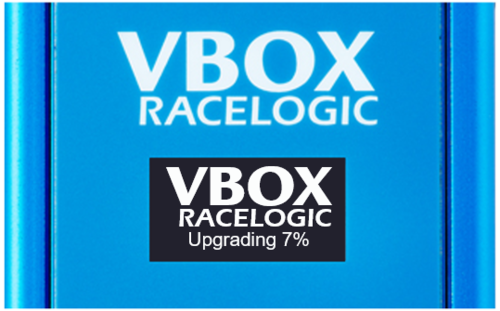
- When the update has been completed, the NTRIP Modem will restart running the new firmware.
- Confirm the installed firmware version on the LCD when the NTRIP Modem restarts.
- Make sure the NTRIP Modem USB driver is downloaded and extracted.
- Try a different USB port.
- Power-cycle the NTRIP Modem.
- Contact Racelogic support
Compatible Products (Product Code): VBNTRIPMDM
28 January 2026
Baseline Distance Display:
- Added new front panel screen showing calculated baseline distance to the NTRIP base station.
- Displays real-time distance in meters or kilometres with GNSS fix status. (RTK FIXED, RTK FLOAT, 2D/3D FIX)
- Shows current mountpoint name on the baseline screen.
Fixed Position GGA Support:
- Added ability to send self-generated fixed position GGA messages to the NTRIP caster.
- Enables operation without requiring a connected GNSS receiver for position.
- Configured position is shown in the web interface.
Network Time Synchronization:
- Added SNTP (Simple Network Time Protocol) module for automatic UTC time synchronization.
- Ensures accurate timestamps for RTCM message handling.
Enhanced RTCM Statistics Display:
- Added per-message-type timing statistics (Last/Avg/Age/Hz) with burst-aware display.
- Added collapsible legend explaining column meanings on the RTCM counter page.
- Added observables table with GNSS band aggregation.
Web Interface Improvements:
- Added rover GNSS fix status to the base station info page.
- Added meter units to ECEF parameters on base station info page.
- Added copy-to-clipboard functionality for unit details.
- Added mailto autofill support with unit information.
- Mobile operator name now displayed on web interface.
Serial Interface:
- Increased external serial maximum baud rate to 921600.
- Fixed a bug that caused the unit to not restart after users changed from LTE to Wi-Fi network connection.
Bug Fixes
- Fixed a bug that caused issued with registration.
- Fixed a bug that caused a boot looping issue observed on a small number of units.
New Features
- Added configurable baud rates for corrections output.
Improvements
- Improved refresh of status messages in the web interface.
- Improved support for different network providers.
New Features
- Password now required for secure network access to the Wi-Fi Access Point.
Improvements
- Increased maximum number of stations allowed to connect in Access Point mode to three.
- General UI improvements.
Bug Fixes
- Fixed a bug causing issues with Mobile network registration.
Improvements
- Extended time for connection to Wi-Fi.
- General UI improvements.
Bug Fixes
- Fixed a bug that caused RTCM data to corrupt when spanning multiple HTML packets.
- Fixed a bug that cause details to be forgotten when setting up a new SIM card.
Bug Fixes
- Fixed a bug that caused credential validation errors on some casters.
- Initial Release