
Select Lap Timing as the Display Mode and tap Settings → Lap Timing.
VBOX Touch will open the primary Lap Timing Settings screen.

The Lap Timing Settings is where you select the test parameters and manage other test options. You can change a setting by tapping on the corresponding button next to an option.
The Lap Timing Settings are split into two pages. Navigate between the pages with the Forward and Back arrows in the bottom right corner of the screen or by swiping left or right on the screen.
Return to the Lap Timing Mode screen, by tapping on the Exit button in the bottom left corner.
VBOX Touch has an inbuilt track database containing a vast number of circuits throughout the world.
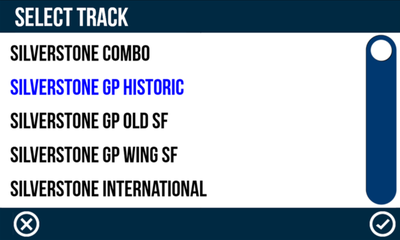
The unit will display the currently selected track based on the GPS location. If a location has multiple available track layouts, tap the Select button to see a list of the options. Choose a layout by tapping the desired option and then the Confirm button in the bottom right corner of the screen. Tap the Cancel button in the bottom left corner of the screen to return to the Lap Timing Settings screen without changing the track.
If you change the track layout, the LEDs will flash green twice and the unit will emit an audible confirmation notification. The layout will be remembered after each power cycle as long as it is determined to be local to the detected location.


VBOX Touch has an inbuilt track database containing a vast number of circuits throughout the world.
The unit will display the currently selected track based on the GPS location. If a location has multiple available track layouts, tap the Select button to see a list of the options. Choose a layout by tapping the desired option and then the Confirm button in the bottom right corner of the screen. Tap the Cancel button in the bottom left corner of the screen to return to the Lap Timing Settings screen without changing the track.
If you change the track layout, the LEDs will flash green twice and the unit will emit an audible confirmation notification. The layout will be remembered after each power cycle as long as it is determined to be local to the detected location.

NOTES
- If you press the Select button when you are not in the vicinity of a known track, the unit will display a NO LIST AVAILABLE message.
- When the selected track is changed, all existing lap timing values will be cleared and the new lap timing gates will be used.
Selecting the Set Start Gate option within the Lap Timing Settings manually set a start/finish line when moving, overwriting the line detected within the circuit layout. If you are defining a separate Finish Line, this gate will act as the Start Line only. More information about manually setting a start/finish line can be found above.

Selecting the Set Start Gate option within the Lap Timing Settings manually set a start/finish line when moving, overwriting the line detected within the circuit layout. If you are defining a separate Finish Line, this gate will act as the Start Line only. More information about manually setting a start/finish line can be found above.

NOTE
The vehicle must be moving >0.8 km/h and the unit have satellite lock to set a Start/Finish Line.
Selecting the Set Finish Gate option within the Lap Timing Settings will manually set a Finish line when moving, overwriting the finish line detected within the circuit layout. A separate finish line must be set if you are using Standing Start Mode.

Selecting the Set Finish Gate option within the Lap Timing Settings will manually set a Finish line when moving, overwriting the finish line detected within the circuit layout. A separate finish line must be set if you are using Standing Start Mode.

NOTE
The vehicle must be moving >0.8 km/h and the unit have satellite lock to set a Finish Line.
Selecting the Clear Finish Gate option within the Lap Timing Settings will clear the separate Finish line and will use the active Start line as a combined Start/Finish line.
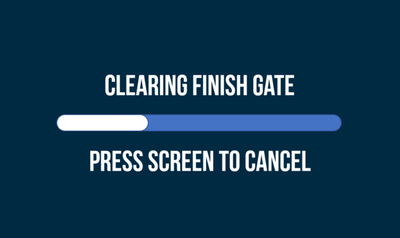
A screen will be displayed, allowing you to cancel the finish line clear within 5 seconds by repressing the screen.
If the finish line is cleared, the LEDs will flash green twice and the unit will emit an audible confirmation notification.


Selecting the Clear Finish Gate option within the Lap Timing Settings will clear the separate Finish line and will use the active Start line as a combined Start/Finish line.
A screen will be displayed, allowing you to cancel the finish line clear within 5 seconds by repressing the screen.
If the finish line is cleared, the LEDs will flash green twice and the unit will emit an audible confirmation notification.

NOTE
- When the finish gate is cleared, all existing lap timing values and lap history will be cleared.
- If finish line setting is cancelled, any live lap prediction for the current lap may be lost and unavailable for use.
The Track Database installed within the VBOX Touch is updated whenever a new firmware file is uploaded on to the unit.
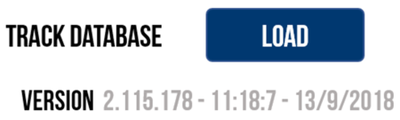
However, you can also update the Track Database manually, by tapping the Load Track Database button in the Lap Timing Settings. If an SD card is detected and a saved .tdb or .bdb track database file is located within the root directory of the SD card (not in the media or any other folder), the unit will start to load the file, which will update the tracks list but not overwrite any existing track information.
Progress of the track database update will be displayed via the LEDs, with each illuminated LED representing 25% of the process. The update has been completed successfully when all the LEDs are illuminated and then turned off.
This area also displays the currently installed track database version information.

The Track Database installed within the VBOX Touch is updated whenever a new firmware file is uploaded on to the unit.
However, you can also update the Track Database manually, by tapping the Load Track Database button in the Lap Timing Settings. If an SD card is detected and a saved .tdb or .bdb track database file is located within the root directory of the SD card (not in the media or any other folder), the unit will start to load the file, which will update the tracks list but not overwrite any existing track information.
Progress of the track database update will be displayed via the LEDs, with each illuminated LED representing 25% of the process. The update has been completed successfully when all the LEDs are illuminated and then turned off.
This area also displays the currently installed track database version information.
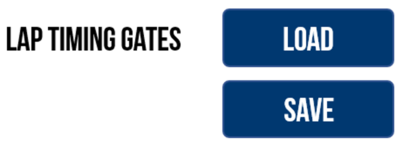
You can load previously saved or provided Start/Finish line gates by inserting an SD card with gate files contained within a SF LINES folder into the unit and then pressing the Load Lap Timing Gates button within the Lap Timing Settings. If only one file is located on the SD card, the file will be loaded immediately.
If multiple files are located on the SD card, the unit will display all available files. Select a file and tap the Confirm button in the bottom right corner of the screen to load it. Tap the Cancel button in the bottom left corner of the screen to return to the Lap Timing Settings screen without loading a gate file.
When loaded, a success screen will briefly display to show that it is was loaded successfully. If there are splits stored in the file, these will also be uploaded to the unit, up to a maximum of 10 gates/splits.

You can load previously saved or provided Start/Finish line gates by inserting an SD card with gate files contained within a SF LINES folder into the unit and then pressing the Load Lap Timing Gates button within the Lap Timing Settings. If only one file is located on the SD card, the file will be loaded immediately.
If multiple files are located on the SD card, the unit will display all available files. Select a file and tap the Confirm button in the bottom right corner of the screen to load it. Tap the Cancel button in the bottom left corner of the screen to return to the Lap Timing Settings screen without loading a gate file.
When loaded, a success screen will briefly display to show that it is was loaded successfully. If there are splits stored in the file, these will also be uploaded to the unit, up to a maximum of 10 gates/splits.
NOTE
When a new Start/Finish or Finish line gate is loaded, all existing lap timing values will be cleared and the new lap timing gates will be used.
To save the currently defined Start/Finish gates, tap the Save Lap Timing Gates button within the Lap Timing Settings. If an SD card is detected, it will be saved as a file named gates.spl within an SF LINES folder on the SD card. A save success screen will briefly display to show that it was saved successfully. If a gate file already exists on the SD card, VBOX Touch will display an overwrite cancel screen, which gives you 5 seconds to cancel the overwrite by tapping the screen.
Change the width of the Start/Finish gate by tapping the width value and using the presented keypad to enter the new width.
Save the new width by tapping the Confirm button in the bottom right corner of the screen. Tap the Cancel button in the bottom left of the screen to return to the Lap Timing Settings screen without saving the new gate width.
The default setting is 25 m/82 ft and is selectable from 3–100 m/10–330 ft. The value will be remembered after each power cycle.
This option is particularly useful if the VBOX Touch is not detecting the correct number of laps. When racing at a very narrow circuit where the pit lane is right next to the start line, it could be possible to trigger lap timing within the pit lane, giving an incorrect number of laps.

Change the width of the Start/Finish gate by tapping the width value and using the presented keypad to enter the new width.
Save the new width by tapping the Confirm button in the bottom right corner of the screen. Tap the Cancel button in the bottom left of the screen to return to the Lap Timing Settings screen without saving the new gate width.
The default setting is 25 m/82 ft and is selectable from 3–100 m/10–330 ft. The value will be remembered after each power cycle.
This option is particularly useful if the VBOX Touch is not detecting the correct number of laps. When racing at a very narrow circuit where the pit lane is right next to the start line, it could be possible to trigger lap timing within the pit lane, giving an incorrect number of laps.

NOTE
The width can be entered with up to 1 decimal place.

This setting is enabled by default.
When Enabled, the Main Lap Timing Screen or Basic Lap Timing Screen will display the current live lap time. When a new lap starts, the previous lap time will be displayed for 5 seconds before reverting to displaying the current live lap time.
When Disabled, the previous lap time will be displayed.

This setting is enabled by default.
When Enabled, the Main Lap Timing Screen or Basic Lap Timing Screen will display the current live lap time. When a new lap starts, the previous lap time will be displayed for 5 seconds before reverting to displaying the current live lap time.
When Disabled, the previous lap time will be displayed.

When Standing Start is Enabled, VBOX Touch can use the position at the start of movement to trigger lap timing. This is particularly suitable for sprint style events as Lap Timing will only stop at a defined Finish Gate.
With standing start enabled, any existing Start/Finish or start gate will be ignored.
Once enabled, the LEDs will briefly flash green twice and the unit will emit an audible confirmation notification. Return to the Lap Timing Screen by pressing the Exit button in the bottom left corner.
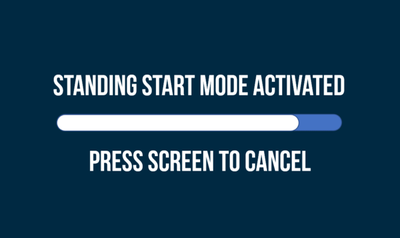
When the unit detects that the vehicle has been stationary (< 0.5 km/h) for 2 consecutive seconds, it will display an activation screen instructing you to wait 5 seconds before moving the vehicle. Tapping the screen, moving, or losing satellite lock before the standing start activation period has expired will cancel the feature.


When Standing Start is Enabled, VBOX Touch can use the position at the start of movement to trigger lap timing. This is particularly suitable for sprint style events as Lap Timing will only stop at a defined Finish Gate.
With standing start enabled, any existing Start/Finish or start gate will be ignored.
Once enabled, the LEDs will briefly flash green twice and the unit will emit an audible confirmation notification. Return to the Lap Timing Screen by pressing the Exit button in the bottom left corner.
When the unit detects that the vehicle has been stationary (< 0.5 km/h) for 2 consecutive seconds, it will display an activation screen instructing you to wait 5 seconds before moving the vehicle. Tapping the screen, moving, or losing satellite lock before the standing start activation period has expired will cancel the feature.

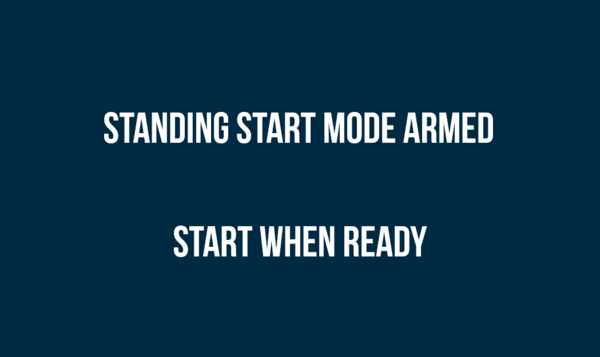
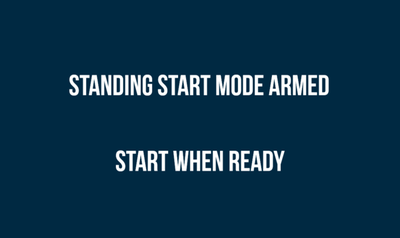
Once the activation period has expired, a 'Standing Start Mode Armed' screen will display, notifying you that the unit is ready for movement. Tap the screen to return to the Lap Timing Settings menu.
When VBOX Touch detects vehicle movement (> 0.5 km/h), it will assign the start gate at 90° to the detected heading. Lap Timing will only complete once the unit detects that a defined separate Finish Gate is crossed.
Once the activation period has expired, a 'Standing Start Mode Armed' screen will display, notifying you that the unit is ready for movement. Tap the screen to return to the Lap Timing Settings menu.
When VBOX Touch detects vehicle movement (> 0.5 km/h), it will assign the start gate at 90° to the detected heading. Lap Timing will only complete once the unit detects that a defined separate Finish Gate is crossed.
You can change the LED behaviour in relation to the Delta-V speed.
There are 3 options:
- 2 km/h (1.2 mph)
- 5 km/h (3.1 mph) - default
- 10 km/h (6.2 mph)
These relate to the maximum speed difference at which the LEDs are brightest. Tap the button to change the setting.
Refer to the LED Indicators section on the User Interface page for more information about the Delta-V LED behaviours.

You can change the LED behaviour in relation to the Delta-V speed.
There are 3 options:
- 2 km/h (1.2 mph)
- 5 km/h (3.1 mph) - default
- 10 km/h (6.2 mph)
These relate to the maximum speed difference at which the LEDs are brightest. Tap the button to change the setting.
Refer to the LED Indicators section on the User Interface page for more information about the Delta-V LED behaviours.

Selecting this option will reset the lap timing data, lap time history and reference lap. Once Reset is selected, a cancel timeout screen will display, allowing you to cancel the reset within 5 seconds by pressing the screen. After 5 seconds, the LEDs will briefly flash green twice and the unit will emit an audible confirmation notification.

Selecting this option will reset the lap timing data, lap time history and reference lap. Once Reset is selected, a cancel timeout screen will display, allowing you to cancel the reset within 5 seconds by pressing the screen. After 5 seconds, the LEDs will briefly flash green twice and the unit will emit an audible confirmation notification.

This option will fix the reference lap.
When fixed, the stored reference lap will not update if a faster lap is achieved. If there is no stored reference lap, the next complete lap will be used as the fixed reference lap.
Alternatively, you can fix the reference lap by triple-tapping on the Lap Timing Screen. When triple-tapping, you will see a cancel timeout screen, allowing you to cancel the reference lap fixing by tapping the screen within 5 seconds.
When a reference lap has been fixed, a padlock icon will show to the right of the reference lap on the Lap Timing Screen.
To unfix a reference lap, tap the Fix Reference Lap button to Disable it.
Alternatively, you can also unfix the reference lap by triple-tapping on the Lap Timing Screen. When triple-tapping, you will see a cancel timeout screen, allowing you to cancel the unfixing of the reference lap by tapping the screen within 5 seconds.

This option will fix the reference lap.
When fixed, the stored reference lap will not update if a faster lap is achieved. If there is no stored reference lap, the next complete lap will be used as the fixed reference lap.
Alternatively, you can fix the reference lap by triple-tapping on the Lap Timing Screen. When triple-tapping, you will see a cancel timeout screen, allowing you to cancel the reference lap fixing by tapping the screen within 5 seconds.
When a reference lap has been fixed, a padlock icon will show to the right of the reference lap on the Lap Timing Screen.
To unfix a reference lap, tap the Fix Reference Lap button to Disable it.
Alternatively, you can also unfix the reference lap by triple-tapping on the Lap Timing Screen. When triple-tapping, you will see a cancel timeout screen, allowing you to cancel the unfixing of the reference lap by tapping the screen within 5 seconds.

You can load a previously saved or provided reference lap by pressing the Load button (as long as the unit is not logging and the vehicle is not moving). If an SD card is detected, the unit will display all .ref files located within the REF LAPS folder on the SD card. Select a file and then press the Confirm Button on the bottom right of the screen, or press the Cancel Button on the bottom left of the screen to return the Settings screen without saving
If confirmed, a load success screen will briefly display to show that it was loaded successfully.
If there are splits stored within the file, these will also be uploaded to the unit, up to a maximum of 10 gates/splits.

You can load a previously saved or provided reference lap by pressing the Load button (as long as the unit is not logging and the vehicle is not moving). If an SD card is detected, the unit will display all .ref files located within the REF LAPS folder on the SD card. Select a file and then press the Confirm Button on the bottom right of the screen, or press the Cancel Button on the bottom left of the screen to return the Settings screen without saving
If confirmed, a load success screen will briefly display to show that it was loaded successfully.
If there are splits stored within the file, these will also be uploaded to the unit, up to a maximum of 10 gates/splits.
NOTE
When a new reference lap is loaded, the Start/Finish gate stored within the .ref lap will be applied as the active Lap timing gate if it is different to the currently loaded gate. If the gates are changed, all existing lap timing values will be cleared and the new lap timing gates will be used.
If a reference lap has been created, you can save the lap for future use (as long as the unit is not logging and the vehicle is not moving) by pressing the Save button. If an SD card is detected, it will be saved as a file named lap.ref within a REF LAPS folder on the SD card. A save success screen will briefly display to show that it was saved successfully. If a reference lap file already exists on the SD card, VBOX Touch will display an overwrite cancel screen, which gives you 5 seconds to cancel the overwrite by pressing the screen.
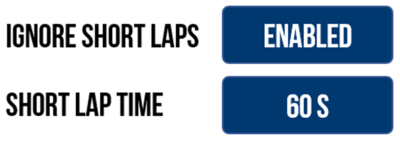
Make VBOX Touch ignore short laps when creating the reference lap. Enable this option and enter a minimum lap time that is acceptable for a reference lap.
Set the minimum lap time by tapping the Short Lap Time button and using the presented keypad to enter the new lap time.
Save the minimum lap time by tapping the Confirm button in the bottom right corner of the screen. Tap the Cancel button in the bottom left corner of the screen to return to the Lap Timing Settings screen without saving a minimum lap time.
The default setting is 60 seconds, but you can select a time between 10 and 86400 s. The unit will remember the value after each power cycle.

Make VBOX Touch ignore short laps when creating the reference lap. Enable this option and enter a minimum lap time that is acceptable for a reference lap.
Set the minimum lap time by tapping the Short Lap Time button and using the presented keypad to enter the new lap time.
Save the minimum lap time by tapping the Confirm button in the bottom right corner of the screen. Tap the Cancel button in the bottom left corner of the screen to return to the Lap Timing Settings screen without saving a minimum lap time.
The default setting is 60 seconds, but you can select a time between 10 and 86400 s. The unit will remember the value after each power cycle.
NOTE
Time can only be entered as a whole number.
This option is Disabled by default.
When Disabled, VBOX Touch will create a new reference lap, even if the lap distance is more than double the stored reference lap. This is useful if you are perhaps warming up on a smaller part of a longer circuit (for example the Nurburgring circuit and Nordschleife) and you want the reference lap to update once you have moved on to the longer circuit.
When Enabled, VBOX Touch will not update the reference lap when the lap distance is more than double the stored reference lap. This can, for example, be useful when the in-lap may cover more than double the distance of the reference lap.

This option is Disabled by default.
When Disabled, VBOX Touch will create a new reference lap, even if the lap distance is more than double the stored reference lap. This is useful if you are perhaps warming up on a smaller part of a longer circuit (for example the Nurburgring circuit and Nordschleife) and you want the reference lap to update once you have moved on to the longer circuit.
When Enabled, VBOX Touch will not update the reference lap when the lap distance is more than double the stored reference lap. This can, for example, be useful when the in-lap may cover more than double the distance of the reference lap.
