
- VBOX 4 unit
- GNSS antenna(s)
- Power cable/battery pack
- IMU unit (IMU05 / IMU05-S / IMU04)
- RLCAB131 – VBOX - IMU connecting cable
- RLCAB042 - VBOX 4 PC USB A to USB B cable
- VBOX Setup Software
- RLCAB069L / RLCAB015L / RLACS182L - vehicle CAN bus cable (optional, for wheel speeds)
IMPORTANT
The IMU unit must be connected to the VBOX 4 unit before you apply power to make the data synchronise correctly.
- Mount/place the VBOX 4 ADAS in the test vehicle, and mount the IMU as described in your IMU's user guide.
- Fit the VBOX 4 GNSS antenna to the centre of the vehicle's roof.
- Connect the antenna to the VBOX 4 unit.
If you are mounting the antenna on the roof, you must measure the relative position from the top centre of the GNSS antenna* to the top centre of the IMU so you can enter them into the VBOX Setup software. You need to make these measurements in all 3 axes: X, Y and Z. - Connect the RLCAB131 cable between the CAN/KF port on the IMU05 and the IMU port on the VBOX 4 ADAS unit.
- Apply power to the VBOX 4 ADAS unit.
- Enable IMU integration with the VBOX Setup software.
*When using a dual antenna system, you must start these measurements at the primary antenna (A).
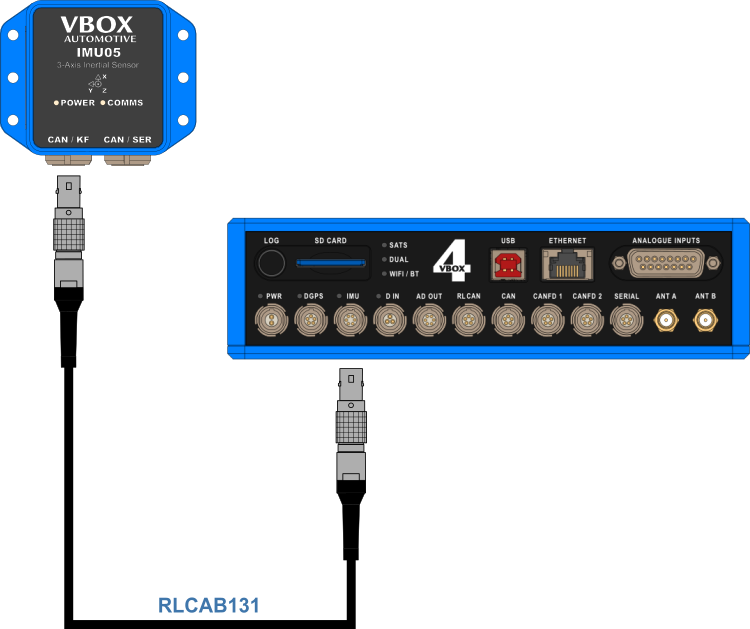
- Make sure that the IMU05 is connected to the VBOX 4 ADAS and that the VBOX unit is powered on.
- Connect VBOX 4 ADAS to the PC via USB or Bluetooth.
- Open VBOX Setup and connect to the VBOX 4 ADAS by selecting the relevant COM Port.
- Open the Logging menu and make sure that the Log rate is set to 100 Hz.
- Open the IMU menu and enable IMU integration.
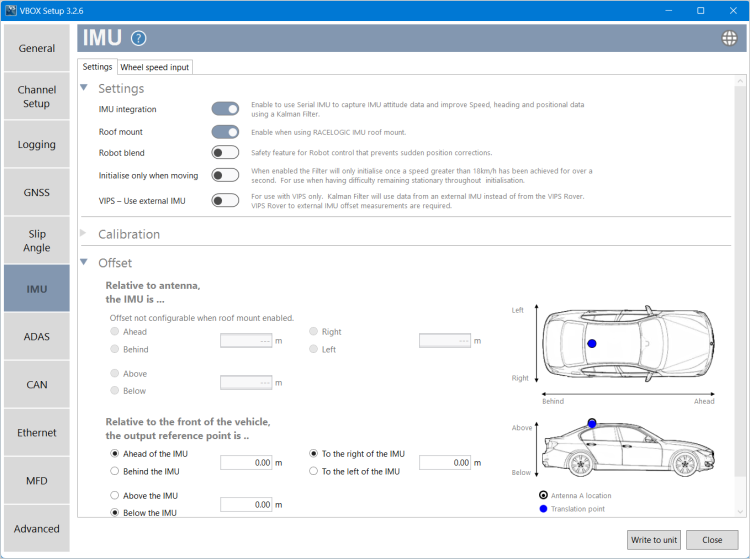
If you have mounted the antenna and IMU together using the Racelogic Roof Mount (co-located), you must enable Roof mount.
If you are not using mounting the antenna and IMU together with the roof mount, you must measure and enter the distances measured between the IMU and the primary antenna (Antenna A when using VBOX 4 ADAS or VBOX 4 Dynamics).
- If you would like to translate data from the IMU location to another point on the vehicle where all measurements will be made, enter the X, Y, and Z offset values from the required translation point to the IMU. You can find more information here.
- The IMU Attitude channels (Head_imu, Pitch_imu, Roll_imu, Pos.Qual., Lng_Jerk and Lat_Jerk) and the Serial IMU channels (x accel, y accel, z accel, temp, pitch rate, roll rate and yaw rate) will be set to log automatically.

Notes:
- If you want to view the data live, you must have a multi-functional display (e.g. MFD Touch) connected and select the relevant channel in the MFD menu.
- If you want to display the IMU Attitude data as a Live Serial data display and you are using an alternative software to VBOX Test Suite, you must tick the required channel(s) in the channel list on the Send over serial tab.
- Click on the Write to unit button to upload the new configurations to the VBOX 4 ADAS unit.
- Perform the Kalman Filter Calibration.
- Perform the IMU Calibration process in the IMU menu in VBOX Setup.
IMPORTANT
You cannot use the IMU unit for IMU integration if it is connected to the VBOX 4 unit via CAN (RLCAB120 / RLCAB005-CS). This method of connection will only allow you to log standard IMU channels. See using IMU as CAN module section for details.
The IMU standard channels can also be logged when the IMU unit is connected via the KF port with cable RLCAB131, without enabling IMU integration. The GNSS antenna and IMU should be co-located (roof mount) or positioned so there is no relative X or Y offset between them. If there is a difference, points you enter manually should reference the IMU location, rather than the GNSS antenna.
Vehicle speed data can be combined with inertial IMU data to provide increased data accuracy in environments that have poor satellite reception, such as areas with trees, buildings, bridges or tunnels. You can find more information on this here.
The best method to obtain the wheel speed information is to use the sensors that are already fitted to the vehicle by connecting to the vehicle’s CAN bus with an RLCAB069L, RLCAB015L or RLACS182L cable. Before you start testing, you must make sure that the VBOX 4 ADAS unit is correctly connected to either the speed sensors or to the vehicle CAN bus.
- Enable and configure the wheel speed input in the VBOX Setup software.
- Make sure that the IMU unit is connected to the VBOX 4 unit, and that the VBOX unit is powered on.
- Connect your VBOX 4 to a computer, either via Bluetooth or via an RLCAB042 cable to one of the computer's USB ports.
- Open VBOX Setup and connect to VBOX 4 by selecting the relevant COM Port.
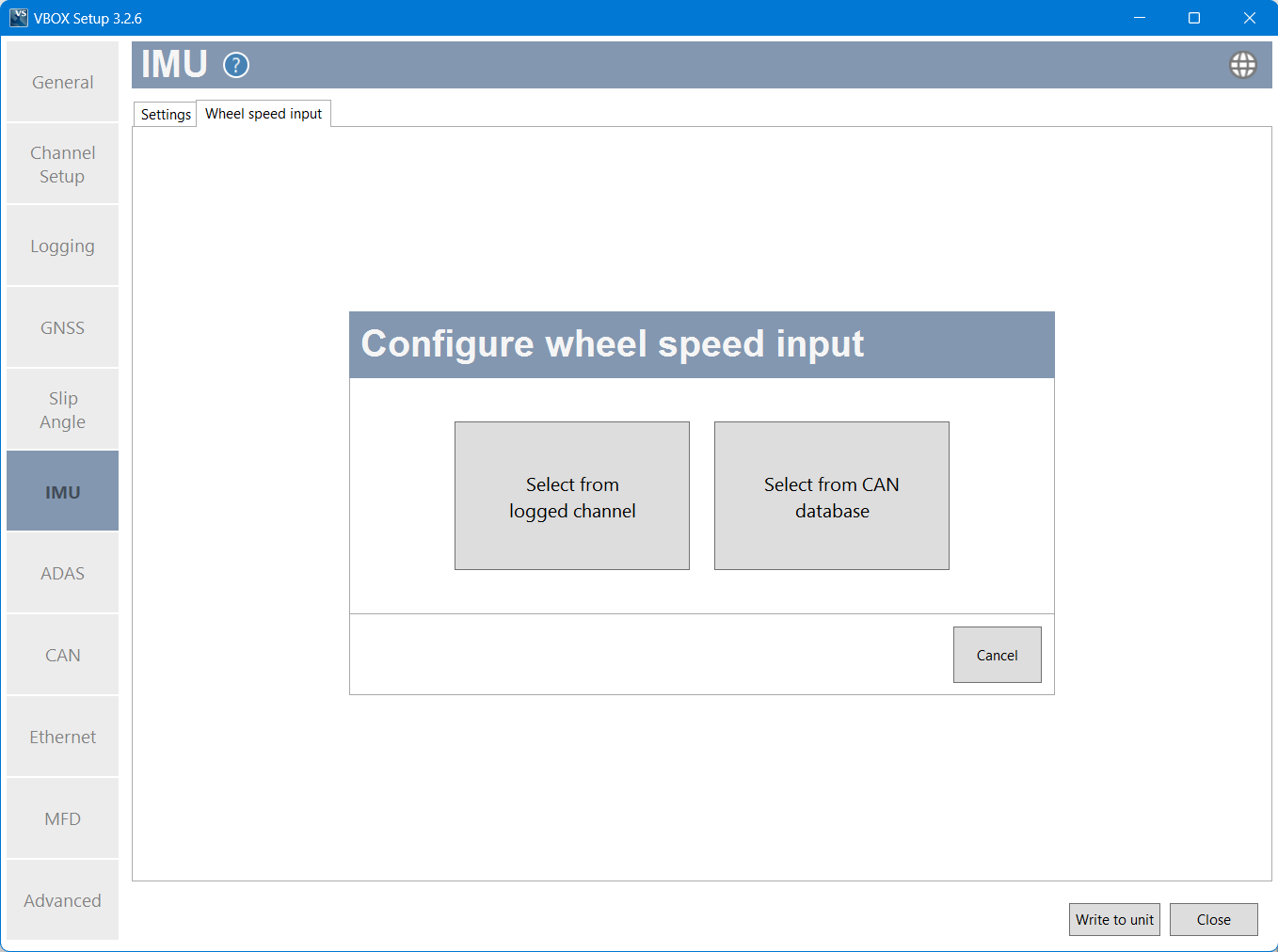
- Open the IMU menu and select the Wheel speed input tab.
- Click the Add wheel speed input to start configuring the inputs.
Configuration Sources
From CAN database
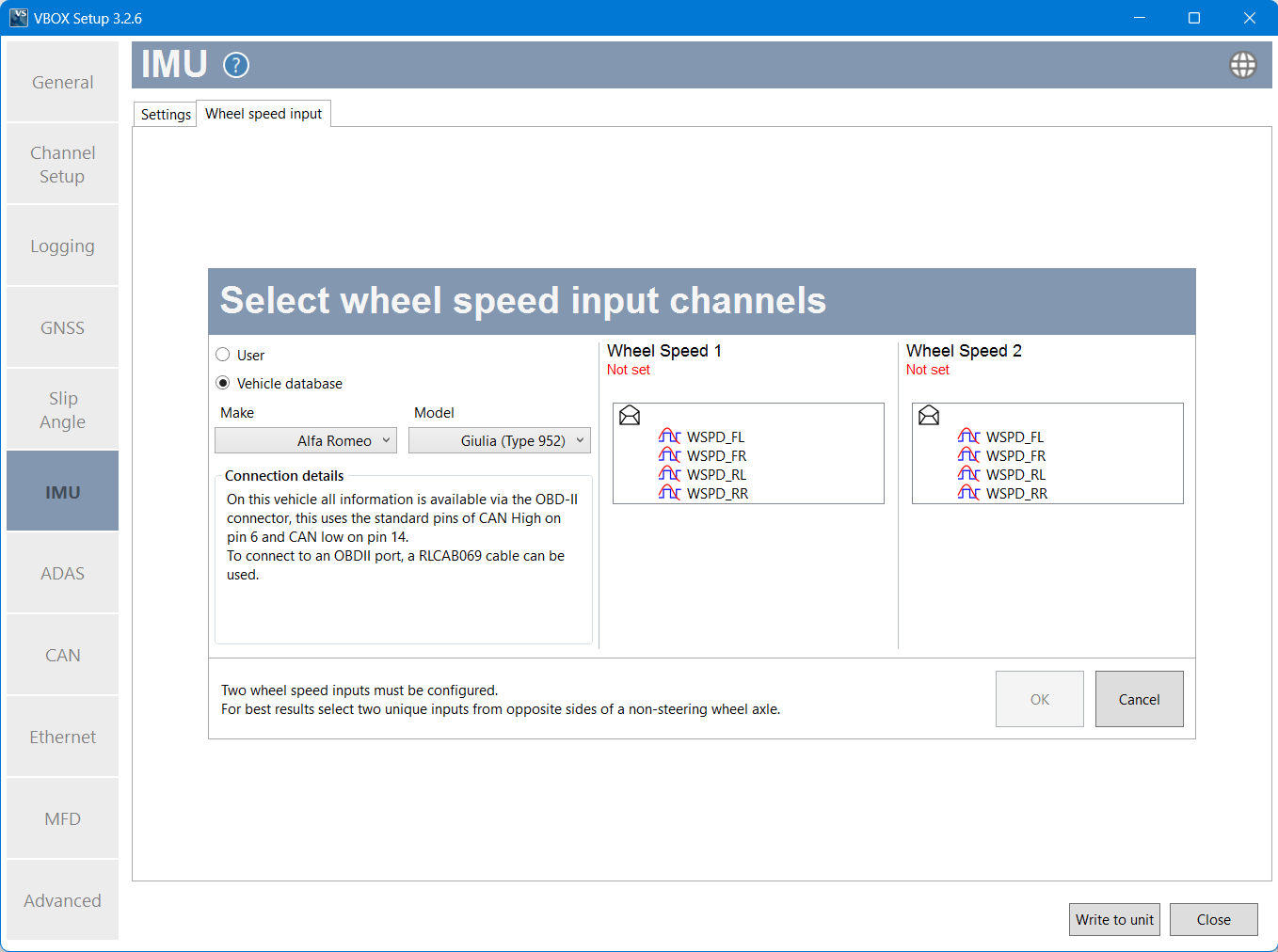
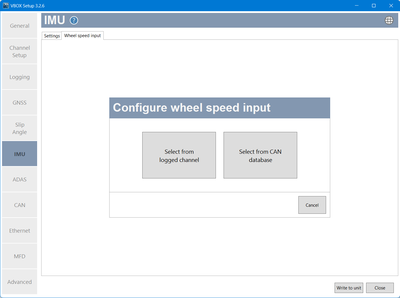
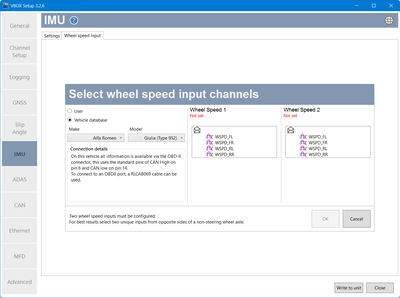
- Configure the inputs by selecting the applicable input for each wheel speed.
- Click OK.
- Select Write to unit to save the settings.
After configuring your wheel speed inputs, you must measure and enter the offset from the antenna to the wheel reference point. The Wheel Speed reference point is the centre point between the rear wheels. Make sure that your measurements are in line with this point.

When you are using IMU integration, an initialisation phase must be completed after you connect the IMU to the VBOX. This will automatically start when the VBOX has successfully gained satellite lock. When the initialisation sequence has started the IMU LED will go solid green once movement is detected.
| LED Colour | Power | Coms |
|---|---|---|
| Red | Initial boot up phase | No coms |
| Orange | Temperature checks. If temperature outside optimum operation range, LED will remain orange. | Using IMU integration, inertial data sent to host VBOX vis RS232. |
| Green | Fully operational | Inertial data being sent to host VBOX via CAN. |