
Tap Settings → Serial Port (in any Display Mode).
VBOX Touch will display the Serial Port Settings screen.
Return to the selected Display Mode screen, by tapping on the Exit button in the bottom left corner.
The right half of the Serial Output Settings screen has an image that identifies the relevant port location on the VBOX Touch unit.
The content and available options on this screen will depend on the VBOX Touch variant you have:

Serial Output
The VBOX Touch Serial Output is on the top CAN/Serial port.
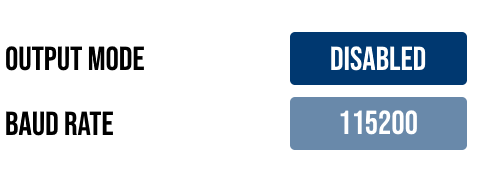
Output Mode
Choose the output mode of the serial port by tapping the button to cycle through the options:
- VBOX Stream
- Lap Timing
- Disabled (default)
VBOX Stream
When using VBOX Stream, you can connect VBOX Touch to a computer (using an RLCAB001) to do online (live) testing in VBOX Test Suite.
Refer to the Operational Information page to learn more about this.
Lap Timing
When using Lap Timing, VBOX Touch will output lap timing parameters on the CAN/Serial port.
Baud Rate
This field provides the set serial output baud rate on the port (115200 kbit/s).
Output Mode
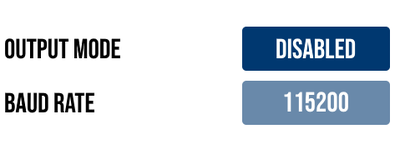
Choose the output mode of the serial port by tapping the button to cycle through the options:
- VBOX Stream
- Lap Timing
- Disabled (default)
VBOX Stream
When using VBOX Stream, you can connect VBOX Touch to a computer (using an RLCAB001) to do online (live) testing in VBOX Test Suite.
Refer to the Operational Information page to learn more about this.
Lap Timing
When using Lap Timing, VBOX Touch will output lap timing parameters on the CAN/Serial port.
Baud Rate
This field provides the set serial output baud rate on the port (115200 kbit/s).
RTK Input
The VBOX Touch RTK Input is on the bottom CAN/Serial port.
VARIANT LIMITATION
This option is only available on VBOX Touch RTK units.
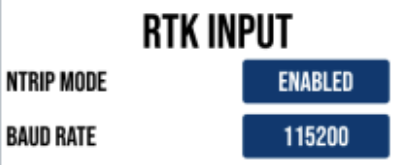
NTRIP Mode
IMPORTANT
Required when using a VBOX NTRIP Modem for RTK corrections.
If you are using an RTK Base Station solution to receive corrections, this option must be Disabled.
Tap the button to Enable/Disable NTRIP Mode.
When NTRIP Mode is Enabled, VBOX Touch will output a GGA NMEA message and receive RTK corrections from an NTRIP modem connected to the bottom CAN/Serial port.
Refer to the Configuration page for more information about setting up the RTK input on VBOX Touch RTK.
NOTE
When you are receiving RTK corrections, you must use the external GNSS antenna.
DGPS Baud Rate
Change the DGNSS serial baud rate by tapping the button to cycle through the available options:
- 9600 kbit/s
- 19200 kbit/s
- 38400 kbit/s
- 57600 kbit/s
- 115200 kbit/s (default)
The setting will be retained after power cycles, coldstarts and firmware upgrades.
If you are using a VBOX NTRIP Modem, the Baud Rate must be set to 115200 kbit/s.
If you are using a Telemetry Radio Module with a Static Base Station, this setting should be either 115200 kbit/s for a Racelogic radio (blue) or 38400 kbit/s for a Satel radio (grey).
RTK Correction Status
The unit's RTK correction status is indicated in the GPS Status section of the Diagnostics screen. The colour of the Satellite Status icon will change based on the RTK correction status (as specified on the User Interface page).
NTRIP Mode
IMPORTANT
Required when using a VBOX NTRIP Modem for RTK corrections.
If you are using an RTK Base Station solution to receive corrections, this option must be Disabled.
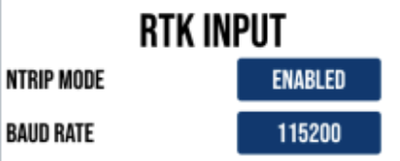
Tap the button to Enable/Disable NTRIP Mode.
When NTRIP Mode is Enabled, VBOX Touch will output a GGA NMEA message and receive RTK corrections from an NTRIP modem connected to the bottom CAN/Serial port.
Refer to the Configuration page for more information about setting up the RTK input on VBOX Touch RTK.
NOTE
When you are receiving RTK corrections, you must use the external GNSS antenna.
DGPS Baud Rate
Change the DGNSS serial baud rate by tapping the button to cycle through the available options:
- 9600 kbit/s
- 19200 kbit/s
- 38400 kbit/s
- 57600 kbit/s
- 115200 kbit/s (default)
The setting will be retained after power cycles, coldstarts and firmware upgrades.
If you are using a VBOX NTRIP Modem, the Baud Rate must be set to 115200 kbit/s.
If you are using a Telemetry Radio Module with a Static Base Station, this setting should be either 115200 kbit/s for a Racelogic radio (blue) or 38400 kbit/s for a Satel radio (grey).
RTK Correction Status
The unit's RTK correction status is indicated in the GPS Status section of the Diagnostics screen. The colour of the Satellite Status icon will change based on the RTK correction status (as specified on the User Interface page).
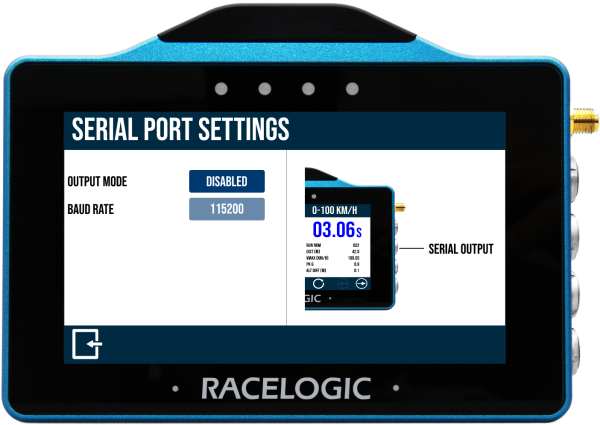
Serial Output
The VBOX Touch Serial Output is on the top CAN/Serial port.
Output Mode
Choose the output mode of the serial port by tapping the button to cycle through the options:
- VBOX Stream
- Lap Timing
- Disabled (default)
VBOX Stream
When using VBOX Stream, you can connect VBOX Touch to a computer (using an RLCAB001) to do online (live) testing in VBOX Test Suite.
Refer to the Operational Information page to learn more about this.
Lap Timing
When using Lap Timing, VBOX Touch will output lap timing parameters on the CAN/Serial port.
Baud Rate
This field provides the set serial output baud rate on the port (115200 kbit/s).
Output Mode
Choose the output mode of the serial port by tapping the button to cycle through the options:
- VBOX Stream
- Lap Timing
- Disabled (default)
VBOX Stream
When using VBOX Stream, you can connect VBOX Touch to a computer (using an RLCAB001) to do online (live) testing in VBOX Test Suite.
Refer to the Operational Information page to learn more about this.
Lap Timing
When using Lap Timing, VBOX Touch will output lap timing parameters on the CAN/Serial port.
Baud Rate
This field provides the set serial output baud rate on the port (115200 kbit/s).