
Getting Started
When you purchase the ADAS Audio Sensor, you will find the following items when you open the box:
| Product Code | Quantity | Description | |
|---|---|---|---|
| RLADAS-AS-V1 | 1 | Audio Sensor Unit | |
| TV1AM20MB31 | 1 | USB-C to USB-A cable | |
| RLACS343 | 1 | External Microphone | |
| RLCAB005-C | 1 | 5-way LEMO to 5-way LEMO CAN cable | |
| RLCAB007-2 | 1 | 3-way LEMO to 4-wire unterminated cable |
| Product Code | Description |
|---|---|
| RLACS287 | Mount |
| ADC25IPCON | 25-way D-connector |
| SUBCON15M-SH | 15-way D-connector |
TRIG OUT
You can use the RLCAB007-2 cable wired to the Analogue Input connector to connect the Audio sensor to the VBOX unit. This will send the live trigger data to the VBOX unit via the Analogue Input.
USB
When you connect the Audio sensor to the PC with the USB-A to USB-C cable, the unit will be powered by the PC via the cable so that you can see the live preview of the audio around you and configure the unit.
CAN
You can use a RLCAB005-C cable to connect the Audio Sensor to a VBOX unit to relay the live trigger data via CAN to the VBOX unit. You can see more information about the CAN message output here.
There are multiple connection methods for the Audio Sensor:
The RLCAB007-2 is an unterminated cable that you can wire into a Sub-D connector to connect to the Analogue Input connector on a VBOX unit.
Use the RLCAB005-C to connect from the CAN/PWR port on the Audio Sensor to a CAN port on the VBOX unit.
This is an accessory that is to be used when the sound you are listening for comes from a location that is hard to reach.
- Make sure that you have VBOX Audio Sensor Setup installed on your PC.
- Connect your ADAS Audio Sensor to your PC with a USB-A to USB-C cable.
This cable will power the unit and provide access to configure the detection and trigger settings.
Image missing
- Make sure that you have VBOX Audio Sensor Setup installed on your PC.
- Connect your ADAS Audio Sensor to your PC with a USB-A to USB-C cable.
This cable will power the unit and provide access to configure the detection and trigger settings.
Image missing
- Open VBOX Audio Sensor Setup.
- Click on the Connect button to open the dropdown list of available COM ports and select the port that you connected the Audio Sensor to. (It will be labeled as USB serial device.)
Image missing
- Open VBOX Audio Sensor Setup.
- Click on the Connect button to open the dropdown list of available COM ports and select the port that you connected the Audio Sensor to. (It will be labeled as USB serial device.)
Image missing
- When the software has connected to the unit, the graph in the Visualiser will automatically populate and show live feedback of background noise captured by the Audio Sensor's internal microphone (or external microphone if used).
- Select the frequency you wish to detect.
You can do this by either clicking directly on the graph to select that frequency, typing the frequency directly into the Selected Freq. (Hz) value box, or using the arrow buttons next to the Selected Freq. (Hz) value box to increase or decrease the frequency value. - You can replay the selected frequency in the software to confirm your selection by clicking on the speaker icon next to the selected frequency in the Visualiser.
- Click on the + icon next to the Selected Freq. to add the currently selected frequency to the Frequencies to Detect list.
You can add a maximum of 4 frequencies to detect.
- You can set the unit to trigger using the AND or OR functionalities:
Image missing
- When the software has connected to the unit, the graph in the Visualiser will automatically populate and show live feedback of background noise captured by the Audio Sensor's internal microphone (or external microphone if used).
- Select the frequency you wish to detect.
You can do this by either clicking directly on the graph to select that frequency, typing the frequency directly into the Selected Freq. (Hz) value box, or using the arrow buttons next to the Selected Freq. (Hz) value box to increase or decrease the frequency value. - You can replay the selected frequency in the software to confirm your selection by clicking on the speaker icon next to the selected frequency in the Visualiser.
- Click on the + icon next to the Selected Freq. to add the currently selected frequency to the Frequencies to Detect list.
You can add a maximum of 4 frequencies to detect.
- You can set the unit to trigger using the AND or OR functionalities:
Image missing
AND
When you select AND, the signal detection will only be triggered when all of the frequencies are met simultaneously. You can use this for multi-toned warnings or multi-vibration haptic warnings.
Using AND triggering will significantly reduce false positives from any background noise.
Image missing
AND
When you select AND, the signal detection will only be triggered when all of the frequencies are met simultaneously. You can use this for multi-toned warnings or multi-vibration haptic warnings.
Using AND triggering will significantly reduce false positives from any background noise.
Image missing
OR
When you select OR, the sensor output will be activated when the unit detects any of the configured frequencies. The Audio Sensor’s CAN bus output contains individual data bits for each frequency. This makes it possible for a connected VBOX 3i unit to establish and highlight which vehicle warning sound has been detected. For example, if it is a seat belt reminder or a Forward Collision Warning.
Additionally, it is common for warnings to rise in both frequency and intensity the longer they have to sound. (Such as the seat belt reminder or the warning cascade described in UNECE R79). The multiple frequency option with OR triggers will give you the ability to measure individual timings in the escalation of warning sounds.
Image missing
OR
When you select OR, the sensor output will be activated when the unit detects any of the configured frequencies. The Audio Sensor’s CAN bus output contains individual data bits for each frequency. This makes it possible for a connected VBOX 3i unit to establish and highlight which vehicle warning sound has been detected. For example, if it is a seat belt reminder or a Forward Collision Warning.
Additionally, it is common for warnings to rise in both frequency and intensity the longer they have to sound. (Such as the seat belt reminder or the warning cascade described in UNECE R79). The multiple frequency option with OR triggers will give you the ability to measure individual timings in the escalation of warning sounds.
Image missing
- Go to the Advanced Settings area to adjust the following settings, if applicable:
Measure Background Noise Range
Noise Multiplier
Digital Output Fixed Delay (ms)
CAN Output
Image missing
- Go to the Advanced Settings area to adjust the following settings, if applicable:
Measure Background Noise Range
Noise Multiplier
Digital Output Fixed Delay (ms)
CAN Output
Image missing
- When you are happy with the configured settings, click Write to Unit to save the configuration to your Audio Sensor unit.
Image missing
- When you are happy with the configured settings, click Write to Unit to save the configuration to your Audio Sensor unit.
Image missing
After you have configured the Audio Sensor with the Audio Sensor Setup software, you can connect it to your VBOX unit and complete the configuration with the VBOX Setup software.
Click on the relevant heading to see the setup for your connection.
After you have finished setting up the Audio Sensor with the Audio Sensor Setup software, you can connect it to your VBOX 3i unit and complete the configuration with the VBOX Setup software.
- Open VBOX Setup and connect to the relevant COM port for your VBOX 3i unit.
- Go to the Channel Configuration Menu and click on the Internal A/D section header.
- Click on the channel name for the channel that was used to wire the Audio Sensor into the Analogue input connector.
This will open the channel settings where you can update the name, units, scale and offset for the selected channel.
- Rename the channel.
Use a recognisable name, such as "Audio".

- Trigger the Audio Sensor to confirm that it is connected and working.
You will see the signal in the graph at the bottom of the settings area.
- Update the Scale and Offset as required to make the signal display logically in the graph.
You can find more information on configuring your VBOX 3i unit in your unit's user guide.
After you have finished setting up the Audio Sensor with the Audio Sensor Setup software, you can connect it to your VBOX 3i unit and complete the configuration with the VBOX Setup software.
- Download the ADAS Audio Sensor's .DBC file.
- Open VBOX Setup and connect to the relevant COM port for your VBOX 3i unit.
- Go to the Channel Configuration Menu and click on the CAN Input section header.

- Click on the Add channel button to open the CAN Channel Properties window and configure the CAN input for the Audio Sensor.

- Select User under CAN Database and click on the Load button.
- Navigate to and select the Audio Sensor .DBC file that you downloaded.
You can now see the list of available messages in the CAN Database area.

- Select the message you want to assign/view/log on the VBOX unit, such as Trigger_system or Signal_Delay.
- Click Apply to assign the message and preview the live result. You can cause the Audio Sensor to trigger and review the live value in the Value box under Channel properties by clicking on the magnifying glass next to it.

- Click OK to add the currently selected channel to the CAN Input channels.
- Repeat this process with all the channels you wish to view/log.
You can find more information about how to configure your VBOX 3i unit in its user guide.
When you purchase the ADAS Audio Sensor, you will find the following items when you open the box:
| Product Code | Quantity | Description | |
|---|---|---|---|
| RLADAS-AS-V1 | 1 | Audio Sensor Unit | |
| TV1AM20MB31 | 1 | USB-C to USB-A cable | |
| RLACS343 | 1 | External Microphone | |
| RLCAB005-C | 1 | 5-way LEMO to 5-way LEMO CAN cable | |
| RLCAB007-2 | 1 | 3-way LEMO to 4-wire unterminated cable |
| Product Code | Description |
|---|---|
| RLACS287 | Mount |
| ADC25IPCON | 25-way D-connector |
| SUBCON15M-SH | 15-way D-connector |
TRIG OUT
You can use the RLCAB007-2 cable wired to the Analogue Input connector to connect the Audio sensor to the VBOX unit. This will send the live trigger data to the VBOX unit via the Analogue Input.
USB
When you connect the Audio sensor to the PC with the USB-A to USB-C cable, the unit will be powered by the PC via the cable so that you can see the live preview of the audio around you and configure the unit.
CAN
You can use a RLCAB005-C cable to connect the Audio Sensor to a VBOX unit to relay the live trigger data via CAN to the VBOX unit. You can see more information about the CAN message output here.
There are multiple connection methods for the Audio Sensor:
The RLCAB007-2 is an unterminated cable that you can wire into a Sub-D connector to connect to the Analogue Input connector on a VBOX unit.
Use the RLCAB005-C to connect from the CAN/PWR port on the Audio Sensor to a CAN port on the VBOX unit.
This is an accessory that is to be used when the sound you are listening for comes from a location that is hard to reach.
To use the VBOX Audio Sensor with a VBOX data logger, you must first configure the Audio sensor to trigger on the required frequencies and then configure the input from the Audio Sensor to the VBOX data logger. This is to make sure that it is picking up the required signals and that they are logged correctly.
Click on the images below to see the information about how to configure your Audio Sensor:




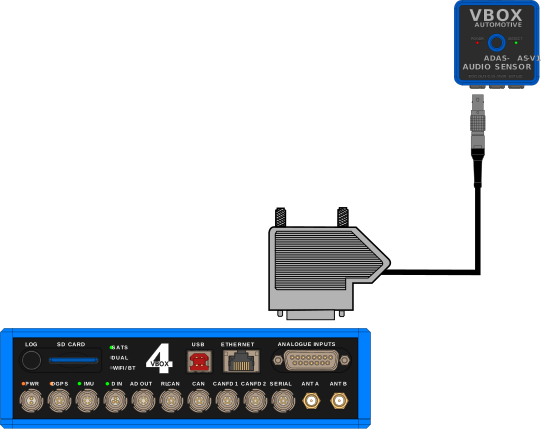
After wiring the unterminated end of RLCAB007-2 to the 15-way D-sub connector as illustrated below, you can connect the 15-way D-sub connector to the ANALOGUE INPUTS port on the VBOX 4 ADAS unit and the Lemo connector to the TRIG OUT port on the Audio Sensor.
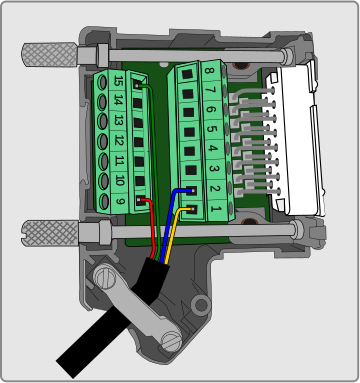
| Wire Colour | Function | |
|---|---|---|
| Red | Power | |
| Green | Ground | |
| Yellow | Signal Ground | |
| Blue | Signal |
- Wire the green wire to the ground pin (15).
- Wire the red wire to the power pin (9).
- Wire the yellow wire to a negative pin in an available Isolated Channel pair.
- Wire the blue wire to a positive pin in an available Isolated Channel pair.
In this example, we are using channel 4 for the signal wires.
You can find the pin information for the analogue Input connector on VBOX 4 ADAS here.
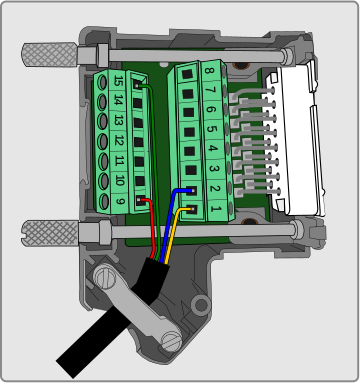
- Wire the green wire to the ground pin (15).
- Wire the red wire to the power pin (9).
- Wire the yellow wire to a negative pin in an available Isolated Channel pair.
- Wire the blue wire to a positive pin in an available Isolated Channel pair.
In this example, we are using channel 4 for the signal wires.
You can find the pin information for the analogue Input connector on VBOX 4 ADAS here.
If you require a different input method for VBOX 4 or to connect to another VBOX product, you can find the full mounting and installation information in the Mounting and Connecting page in the User Guide.