
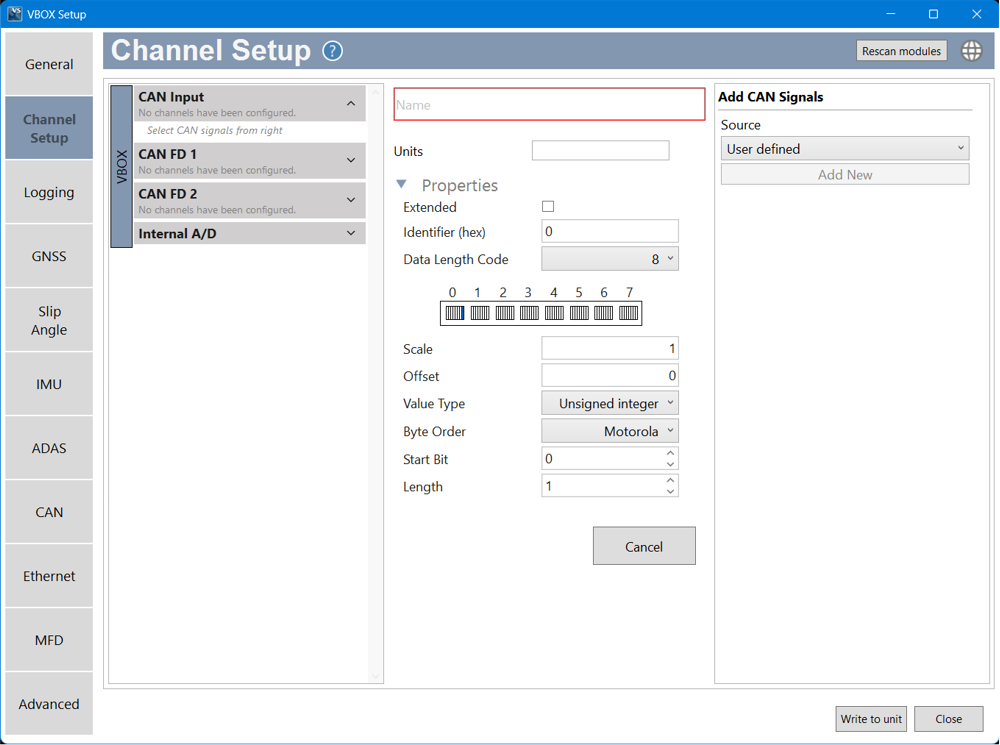
The Channel Setup menu displays the channels that are available to be configured. The available channels will vary depending on the Racelogic modules connected to your VBOX unit and your configurations in other menus.


If you connect or disconnect a module to the VBOX unit while VBOX Setup is already connected and running, you can click on the Rescan modules button to make it display an updated list of the currently connected modules.
If you connect or disconnect a module to the VBOX unit while VBOX Setup is already connected and running, you can click on the Rescan modules button to make it display an updated list of the currently connected modules.
Note: All added channels will automatically be logged to the SD card.

In the Channels area, you will see a list of default channels that are available based on the current connections, configuration and any manually added channels. This section will update as you edit the configuration or add/remove modules.
Select a channel section by clicking on the section heading, such as CAN Input or Internal A/D. This will open the selected section so that you can see the available channels and their previews.
Edit
Click on a channel in the list to see more information about it or to edit the name, units, scale and offset for it.
Log
Default channels will always be logged and cannot be unticked.
Manually added channels from modules or CAN Input signals will automatically be ticked to log when added.
You can untick the box in the Log column for a channel you don't want to log.
Preview
The channel overview has a preview column where you can see the live signal from the input.
Remove
You can remove manually added channels from modules or CAN input signals.
Click on the X in the final column for the relevant channel row to remove a channel.
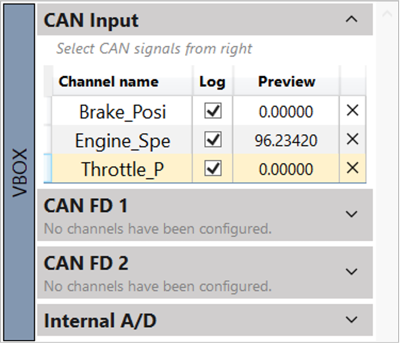
In the Channels area, you will see a list of default channels that are available based on the current connections, configuration and any manually added channels. This section will update as you edit the configuration or add/remove modules.
Select a channel section by clicking on the section heading, such as CAN Input or Internal A/D. This will open the selected section so that you can see the available channels and their previews.
Edit
Click on a channel in the list to see more information about it or to edit the name, units, scale and offset for it.
Log
Default channels will always be logged and cannot be unticked.
Manually added channels from modules or CAN Input signals will automatically be ticked to log when added.
You can untick the box in the Log column for a channel you don't want to log.
Preview
The channel overview has a preview column where you can see the live signal from the input.
Remove
You can remove manually added channels from modules or CAN input signals.
Click on the X in the final column for the relevant channel row to remove a channel.

This section will always be available. It has two channel sections displayed by default with configurable channels:
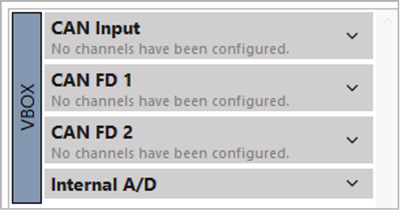
This section will always be available. It has two channel sections displayed by default with configurable channels:

You can add CAN signals you want to log by clicking on the CAN Input section heading in the channels overview and selecting the required source in the Add CAN Signals area on the right-hand side of the window. Tick the required signals in the list. The selected signals will populate in the CAN Input section in the channel overview area.
You can configure the CAN port in the CAN menu.
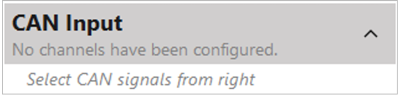
You can add CAN signals you want to log by clicking on the CAN Input section heading in the channels overview and selecting the required source in the Add CAN Signals area on the right-hand side of the window. Tick the required signals in the list. The selected signals will populate in the CAN Input section in the channel overview area.
You can configure the CAN port in the CAN menu.

You can add CAN or CANFD signals you want to log via the CANFD ports by clicking on a CANFD section heading in the channels overview. Select the required source in the Add CAN Signals area on the right-hand side of the window. Tick the required signals in the displayed list. The selected signals will populate in the respective CANFD section in the channel overview area.
You can configure the CANFD port(s) in the CAN menu.
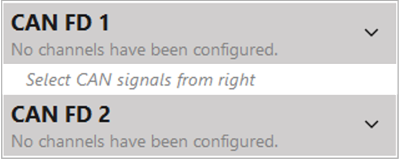
You can add CAN or CANFD signals you want to log via the CANFD ports by clicking on a CANFD section heading in the channels overview. Select the required source in the Add CAN Signals area on the right-hand side of the window. Tick the required signals in the displayed list. The selected signals will populate in the respective CANFD section in the channel overview area.
You can configure the CANFD port(s) in the CAN menu.

When you want to configure the CAN signals to the different CAN ports, you can use on of the following sources:
- Vehicle Database
- Import from dbc/ref
- User Defined
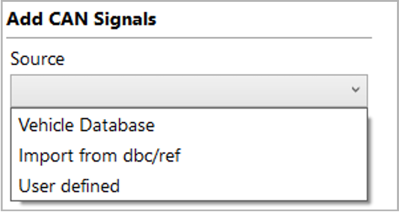
When you want to configure the CAN signals to the different CAN ports, you can use on of the following sources:
- Vehicle Database
- Import from dbc/ref
- User Defined
Select a vehicle make and model and tick the channels you want to log from the list of available channels below.

Import an existing file, .dbc or .ref, from your local computer. When the file has been imported, you can tick the channels you want to log from the list of available channels below.
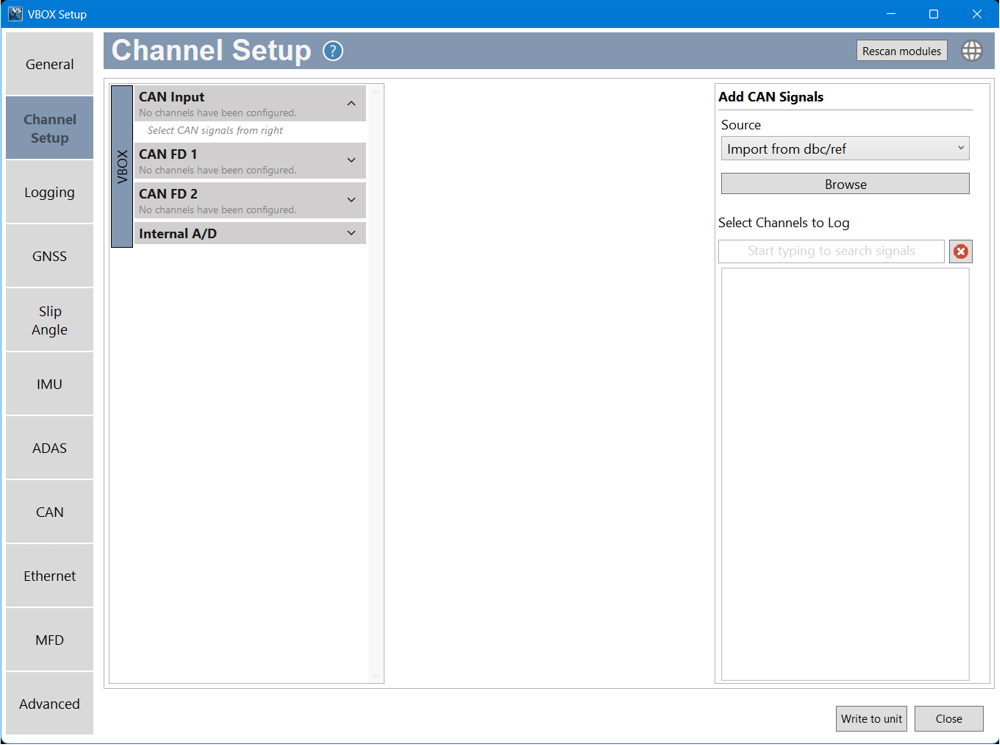
You can define a custom CAN channel by clicking the Add New button and entering a name and other relevant information in the configuration options below.

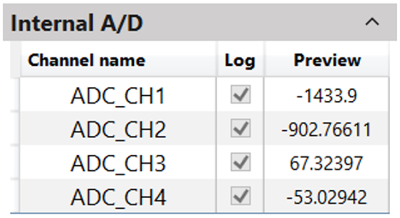
This area contains channels such as Analogue Inputs by default:
- ADC_CH1
- ADC_CH2
- ADC_CH3
- ADC_CH4
Click on a channel to edit the Channel name, Units and Scale & Offset and view a graph preview of the input signal.
This area contains channels such as Analogue Inputs by default:
- ADC_CH1
- ADC_CH2
- ADC_CH3
- ADC_CH4
Click on a channel to edit the Channel name, Units and Scale & Offset and view a graph preview of the input signal.
As you configure your VBOX, more inputs and channels may become available, such as:
Model Limitations
This option is only present for VBOX 4 ADAS and VBOX 4 Dynamics models.

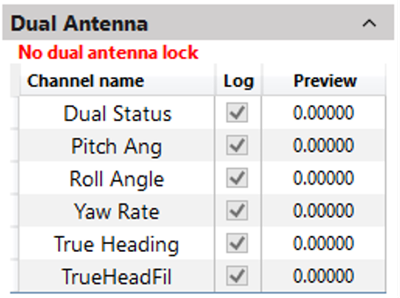
When you enable Dual Antenna in the GNSS menu, the following channels will be logged:
- Dual Status
- Pitch Ang
- Roll Angle
- Yaw Rate
- True Heading
- TrueHeadFil
When you enable Dual Antenna in the GNSS menu, the following channels will be logged:
- Dual Status
- Pitch Ang
- Roll Angle
- Yaw Rate
- True Heading
- TrueHeadFil

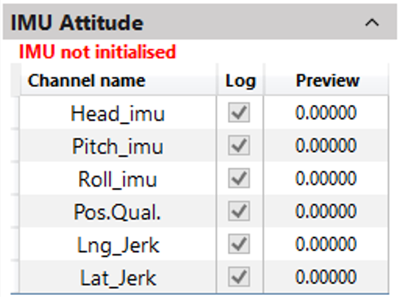
When you enable IMU integration in the IMU menu, the following IMU attitude channels will be logged:
- Head_imu
- Pitch_imu
- Roll_imu
- Pos.Qual.*
- Lng_Jerk
- Lat_Jerk
*Position quality is for use in robot modes and is a numerical representation of the quality of the position.
You can find more information about the different channel definitions here.
When you enable IMU integration in the IMU menu, the following IMU attitude channels will be logged:
- Head_imu
- Pitch_imu
- Roll_imu
- Pos.Qual.*
- Lng_Jerk
- Lat_Jerk
*Position quality is for use in robot modes and is a numerical representation of the quality of the position.
You can find more information about the different channel definitions here.

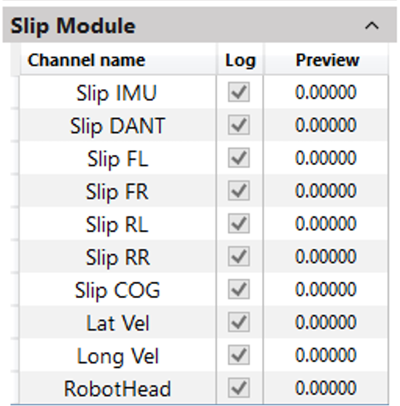
When you enable Dual Antenna in the GNSS menu or IMU integration in the IMU menu, the following channels will be logged:
- Slip IMU
- Slip DANT
- Slip FL
- Slip FR
- Slip RL
- Slip RR
- Slip COG
- Lat Vel
- Long Vel
- RobotHead
You can find more information about the different channel definitions here.
When you enable Dual Antenna in the GNSS menu or IMU integration in the IMU menu, the following channels will be logged:
- Slip IMU
- Slip DANT
- Slip FL
- Slip FR
- Slip RL
- Slip RR
- Slip COG
- Lat Vel
- Long Vel
- RobotHead
You can find more information about the different channel definitions here.

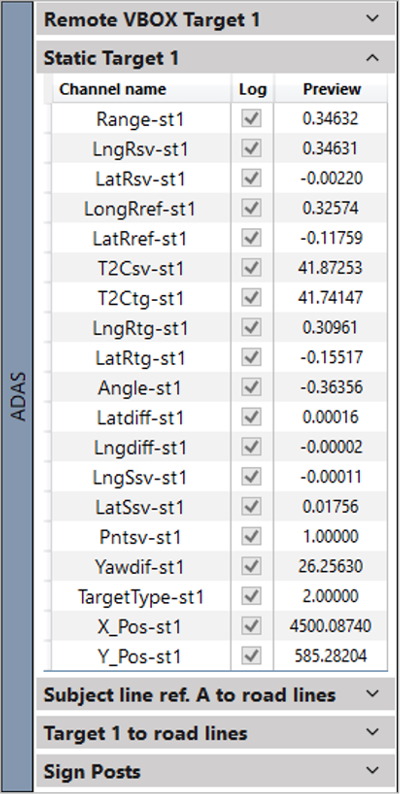
This area of the screen will show you the logged channels based on the settings configured in your ADAS menu, such as:
- Remote VBOX Targets
- Lines
- Sign Posts
- Static Target
Note: This section is only available when you have configured your VBOX unit to perform ADAS logging in the ADAS menu.
This area of the screen will show you the logged channels based on the settings configured in your ADAS menu, such as:
- Remote VBOX Targets
- Lines
- Sign Posts
- Static Target
Note: This section is only available when you have configured your VBOX unit to perform ADAS logging in the ADAS menu.