
Select Speed as the Display Mode and tap Settings → Speed.
VBOX Touch will open the Speed Settings screen.

The Speed Settings is where you select the test parameters and manage other test options. You can change settings by tapping on the corresponding button next to an option.
Return to the Speed Mode screen, by tapping on the Exit button in the bottom left corner.
Adjust the number of decimal places displayed for speed values across all Speed displays, between 0, 1 (default) and 2 decimal places.
Tap the button to cycle through the options.

Adjust the number of decimal places displayed for speed values across all Speed displays, between 0, 1 (default) and 2 decimal places.
Tap the button to cycle through the options.

Apply smoothing to live speed values.
Available options include 0.0 s, 0.25 s (default), 0.5 s and 1.0 s and refer to the amount of time that the displayed data is averaged by.
Tap the button to change the smoothing level.

Apply smoothing to live speed values.
Available options include 0.0 s, 0.25 s (default), 0.5 s and 1.0 s and refer to the amount of time that the displayed data is averaged by.
Tap the button to change the smoothing level.

IMPORTANT
This option will smooth live speeds displayed in all Speed mode screens.
NOTE
Smoothing only applies to the screen displays, not recorded data, and will introduce a slight delay to the displayed value.
Select if the average speed on the Average Speed Screen is calculated as Continuous or Moving.
Continuous
Average speed will start to calculate as soon as an SD card is inserted and initialised.
Moving
Average speed will start to calculate as soon as a speed over 0.8 km/h is detected. calculations will stop when speed is less than 0.8 km/h.

Select if the average speed on the Average Speed Screen is calculated as Continuous or Moving.
Continuous
Average speed will start to calculate as soon as an SD card is inserted and initialised.
Moving
Average speed will start to calculate as soon as a speed over 0.8 km/h is detected. calculations will stop when speed is less than 0.8 km/h.

Define a Target Speed by tapping on the Target Speed button and using the presented keypad to enter the required speed (with up to 1 decimal place).
Save the target speed by tapping the Confirm button in the bottom right corner of the screen. Tap the Cancel button in the bottom left corner of the screen to return to the Speed Settings screen without saving the target speed. The value will be remembered after each power cycle.
The target speed will be displayed underneath the speed value on the Speed, VMAX and Average Speed screens.

Define a Target Speed by tapping on the Target Speed button and using the presented keypad to enter the required speed (with up to 1 decimal place).
Save the target speed by tapping the Confirm button in the bottom right corner of the screen. Tap the Cancel button in the bottom left corner of the screen to return to the Speed Settings screen without saving the target speed. The value will be remembered after each power cycle.
The target speed will be displayed underneath the speed value on the Speed, VMAX and Average Speed screens.
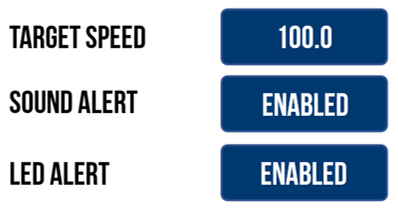
VBOX Touch will alert you when you reach the target speed, using wither the LEDs, an audible beep, or both. When one or both of the alerts are Enabled, VBOX Touch will apply the target speed.
- Audible alert = continuous 2-second beep
- Visual alert = all 4 LEDs will flash green
Alerts will only show once, unless the vehicle has been stationary since the previous alert.