The Racelogic Door Handle Force Sensor (RLACS344) quantifies door operation for ADAS Testing and Development.
Accurately measure the activation of and the force applied to the vehicle door handle and operating mechanisms. This highly sensitive sensor provides a voltage output proportional to the input force, offering invaluable data for the Euro NCAP Dooring assessment. The force applied to the sensor can be directly attributed to user-defined specific testing requirements such as ‘Toperate’, ‘TLatch’ and ‘Topen’.

- Precise Force Measurement:
Delivers a voltage output directly corresponding to the force applied, enabling highly accurate quantitative analysis of door handle operation. - User-Definable Operational Regions:
Enhance your Dooring analysis with the ability to define critical force thresholds including:
Toperate
The span from when the door handle lever is initiated to the point of ‘Tlatch’.
Tlatch
The force at which the door latch begins to disengage.
Topen
The point at which the door opens.
- Simple Integration
Designed for easy placement on door handles or door operating mechanisms and straightforward electrical connection to analogue voltage inputs of your data acquisition system.
- Robust & Reliable
Built to withstand the demands of automotive testing environments, ensuring consistent and repeatable results. The force sensor pad can be easily removed and replaced should damage occur.
- Real-Time Feedback
Provides instant status output when used in combination with VBOX Test suite.
| Description | Values |
|---|---|
| Output Type | Linear voltage dependent on power source |
| Operating Temperature Range | - 20 °C to + 85 °C |
| Sensing Range | 20 g to 5 kg |
| Size | Sensor pad = Ø 30.5 mm.Active area = Ø 25.42 mm. |
| Wire Colour | Function |
|---|---|
| Red | Power |
| Green/Black | Ground |
| Yellow | Signal |
| Blue | Signal Ground |
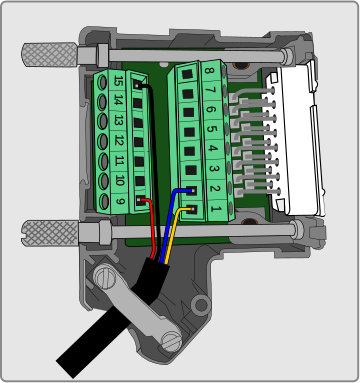
- Wire the green/black wire to the ground pin (15).
- Wire the red wire to the power pin (9).
- Wire the yellow wire to a positive pin in an available Isolated Channel pair.
- Wire the blue wire to a negative pin in an available Isolated Channel pair.
In this example, we are using channel 4 for the signal wires.
You can find the pin information for the Analogue Input connector on VBOX 4 here.
Note: Take note of the channel you are connecting the signal wires to, as you will need to configure this channel in the Channel Setup menu in the VBOX Setup software when you connect the sensor to the VBOX.

- Wire the green/black wire to the ground pin (15).
- Wire the red wire to the power pin (9).
- Wire the yellow wire to a positive pin in an available Isolated Channel pair.
- Wire the blue wire to a negative pin in an available Isolated Channel pair.
In this example, we are using channel 4 for the signal wires.
You can find the pin information for the Analogue Input connector on VBOX 4 here.
Note: Take note of the channel you are connecting the signal wires to, as you will need to configure this channel in the Channel Setup menu in the VBOX Setup software when you connect the sensor to the VBOX.
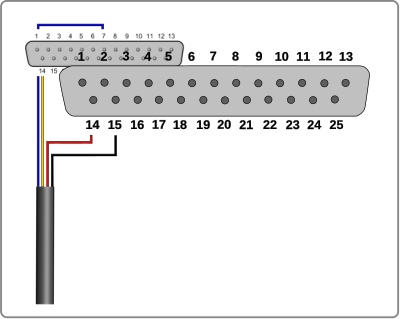
- Wire the black wire to the ground pin (15).
- Wire the red wire to the power pin (14).
- Wire the yellow wire to a positive pin in an available Isolated Channel pair.
- Wire the blue wire to a negative pin in an available Isolated Channel pair.
In this example, we are using channel 1 for the signal wires.
You can find the pin information for the Analogue Input connector on VBOX 3i here.
Note: Take note of the channel you are connecting the signal wires to, as you will need to configure this channel in the Channel Setup menu in the VBOX Setup software when you connect the sensor to the VBOX.

- Wire the black wire to the ground pin (15).
- Wire the red wire to the power pin (14).
- Wire the yellow wire to a positive pin in an available Isolated Channel pair.
- Wire the blue wire to a negative pin in an available Isolated Channel pair.
In this example, we are using channel 1 for the signal wires.
You can find the pin information for the Analogue Input connector on VBOX 3i here.
Note: Take note of the channel you are connecting the signal wires to, as you will need to configure this channel in the Channel Setup menu in the VBOX Setup software when you connect the sensor to the VBOX.