
Select Accel as the Display Mode and tap Settings → Accel.
VBOX Touch will open the Accel Settings screen.

The Accel Settings is where you select the test parameters and manage other test options. You can change settings by tapping on the corresponding button next to an option.
Return to the Accel Mode screen, by tapping on the Exit button in the bottom left corner.
You can define four concurrent tests. By default, these are 0–60, 0–100, 0–100–0 and 0–¼ mile.
The current test ranges are presented on the left hand side of the screen and will be remembered for future use, even if you use another display mode.
Tap on a test parameter value to open the Test Config screen where you can redefine the test parameters.
Tap the Test Type button to choose between Speed, Distance or 0-Speed-0 (e.g. 0–100–0). The displayed parameters will depend on the selected test.


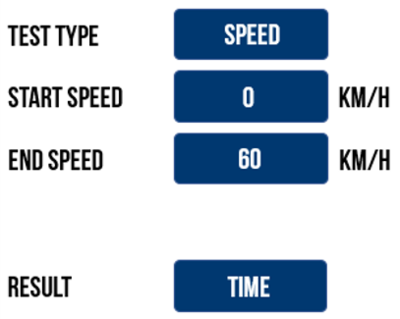
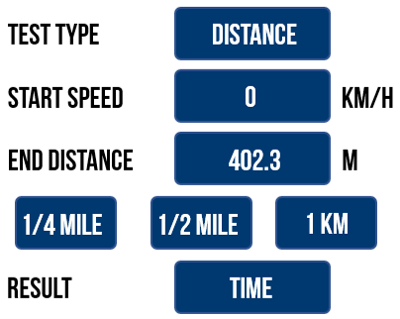
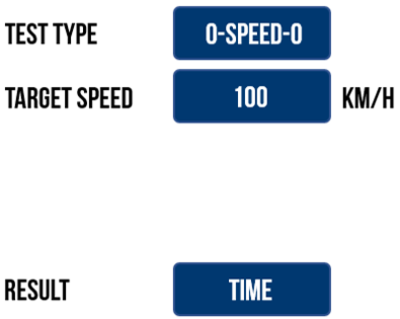
| Test Type | Parameters | ||
|---|---|---|---|
| Speed | Start Speed (km/h or mph) | End Speed (km/h or mph) | Result (time or distance) |
| Distance | Start Speed (km/h or mph) | End Distance (m or ft)* | Result (time or speed) |
| 0-Speed-0 | Target Speed (km/h or mph) | Result (time or distance) | |
*Pre-set Distance buttons include 1/4 mile, 1/2 mile and 1 km.
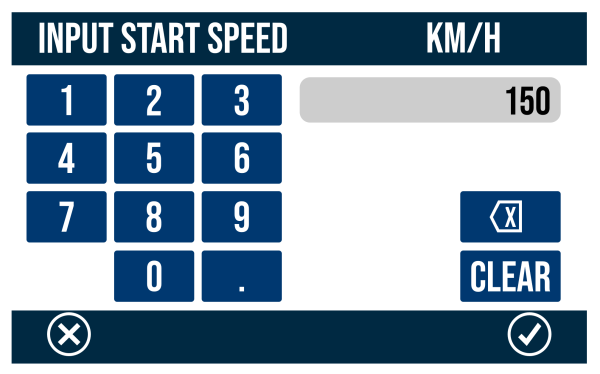
You can define the start and end conditions by pressing the corresponding buttons and using the keypad presented. If you are defining a Distance test, one of the pre-set distance buttons can be selected to quickly choose the test.
Save the new value by tapping the Confirm button in the bottom right corner of the screen, or return the Test Config screen without saving by tapping the Cancel button in the bottom left corner of the screen.
NOTES
- The maximum input value for speed is 999.9 and 9999 for distance.
- The minimum target value for a 0-Speed-0 test is 5 km/h/ 3.1 mph.
- Speed can be entered with up to 1 decimal place.
The test result type for a selected test range can be changed by tapping on the current option.
Available result types include:
- Speed and 0-Speed-0 tests:
- Time (default) - Elapsed time between start and end conditions being met given as the selected range result.
- Distance - Distance travelled between start and end condition given as the selected range result.
- Distance tests:
- Time (default) - Elapsed time between start and end conditions being met given as the selected range result.
- Speed - Speed when end condition is met given as the selected range result.
Save the new test configuration by tapping the Confirm button in the bottom right corner of the screen, or return to the Accel Mode screen without saving by tapping the Cancel button in the bottom left corner of the screen.
The parameters of the primary test is displayed at the top right of the Primary Accel Screen. The Accel test ranges will be remembered for future use, even when using other display modes.
By default, an audible and visual alert signals when either the test end criteria, or the target speed is met within a 0-Speed-0 test. The VBOX Touch will beep and the 4 LEDs across the top of the device will flash green for 0.5 s. Tap the button to disable.

By default, an audible and visual alert signals when either the test end criteria, or the target speed is met within a 0-Speed-0 test. The VBOX Touch will beep and the 4 LEDs across the top of the device will flash green for 0.5 s. Tap the button to disable.

NOTE
This setting will only apply to the Primary Test.
If enabled, all tests will not commence until 1 ft or 0.305 m distance has been covered.
When Enabled, '1ft' will appear next to the test header text on the Primary Accel screen and 'ONE FOOT ROLLOUT' will be displayed on the right-hand side of the new session header in the Test Results.

If enabled, all tests will not commence until 1 ft or 0.305 m distance has been covered.
When Enabled, '1ft' will appear next to the test header text on the Primary Accel screen and 'ONE FOOT ROLLOUT' will be displayed on the right-hand side of the new session header in the Test Results.

NOTE
Cannot be enabled when Slope Correct is Enabled.
If enabled, VBOX Touch will apply a DB Scanner slope correction method to all speed to speed or speed to distance acceleration test results presented on the screen.
Slope correction only applies to the live display results in order to match DB Scanner third-party software post process corrections. It is not possible to apply post process corrections using Racelogic software programs.
If Enabled, 'DBSC' will appear next to the Test header text on the Primary Accel Screen and 'DBSCANNER SLOPE CORRECTED' will be displayed on the right hand side of the new session header within the Test Results.

If enabled, VBOX Touch will apply a DB Scanner slope correction method to all speed to speed or speed to distance acceleration test results presented on the screen.
Slope correction only applies to the live display results in order to match DB Scanner third-party software post process corrections. It is not possible to apply post process corrections using Racelogic software programs.
If Enabled, 'DBSC' will appear next to the Test header text on the Primary Accel Screen and 'DBSCANNER SLOPE CORRECTED' will be displayed on the right hand side of the new session header within the Test Results.

NOTE
Cannot be enabled if One Foot Rollout is Enabled.