
The Output Tab is where you can configure the digital and analogue signals on the AD OUT port.
You can:
- Configure the signals for Digital 1 and 2 on the AD OUT port.
- Configure the signals for Analogue 1 and 2 on the AD OUT port.
- Set a source value and test the output connected to a device.


Digital 1
Configure the Digital 1 signal on the AD OUT port, enter a number of pulses per metre and a maximum speed.
Pulses Per Metre
Enter the number of pulses you want for your output.
Maximum Speed
Enter the maximum speed you want for your output.
@10KHZ
This value is the maximum output frequency based on the value in the Pulses per meter and Maximum speed settings.
Minimum Speed Before Output
Based on the values you have entered above and the set update rate, the software will calculate a minimum speed before output.
Digital 2
Configure the Digital 2 signal on the AD OUT port, select from a range of channels currently being logged by the VBOX unit and enter a condition. This is an on/off signal, giving 5 V when the condition is met, and 0 V when it is not.
Source
This is a dropdown menu with the available source signals based on standard VBOX 4 channels and A/D inputs.
Condition
This is a dropdown menu with the following conditions:
- >
- <
- =
- <>
Value
You can specify a threshold value so that the output is 5 V if the condition is true or 0 V if it is false.
Hysteresis Value
You can also apply a tolerance or hysteresis value, depending on the specified condition.

Configure the Analogue 1 and 2 signals on the AD OUT port, including the source and the 5-Volt value and 0-Volt value. This provides a linear 0-to-5-Volt output over a configurable range from any source (standard VBOX 4 channels and A/D inputs)
This is a dropdown menu with the available source signals based on standard VBOX 4 channels and A/D inputs.
You can scale the signal output to best suit the test conditions by setting the 5 V = and 0 V = options to the required limits.
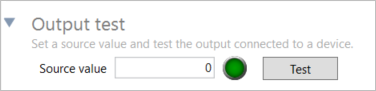
You can test the digital and analogue outputs without the need to connect an antenna and move the vehicle.
Source Value
Enter and apply a speed, which will force the digital and analogue outputs to give a relative output value.
Test
Click on the Test button to start the output test and click on the Stop button to stop the output test.

You can test the digital and analogue outputs without the need to connect an antenna and move the vehicle.
Source Value
Enter and apply a speed, which will force the digital and analogue outputs to give a relative output value.
Test
Click on the Test button to start the output test and click on the Stop button to stop the output test.

The Local Coordinates tab in the Advanced menu is there for you to survey and see the local co-ordinate frame (X and Y position) used for the channel calculations.
You will be able to:
- See the location of the local co-ordinate frame datum point.
- See the track heading, relative to the datum point.
- See the position of the subject vehicle relative to the local coordinate frame.
- Save a .VBC file.
- Load a .VBC file.
You can survey the origin, track direction, and coordinates. Click Survey to set the coordinates to the location of the antenna for your VBOX unit.
Clear an already surveyed location.

Configure VBOX 4 to integrate with supported third-party robots. You will be able to select options based on compatibility with your connected hardware, such as integrated IMUs.
Note: By enabling a robot mode, the VBOX 4 unit will expect certain settings.

Configure the CAN Wheel Speed Input by adding the channels you wish to use.

You can set the wheel speed inputs with an already configured CAN input channel.

You can select channels for wheel speed from the internal database or from a database file.
Click the Add wheel speed input button to open the Select wheel speed input channels window and set your input channels.
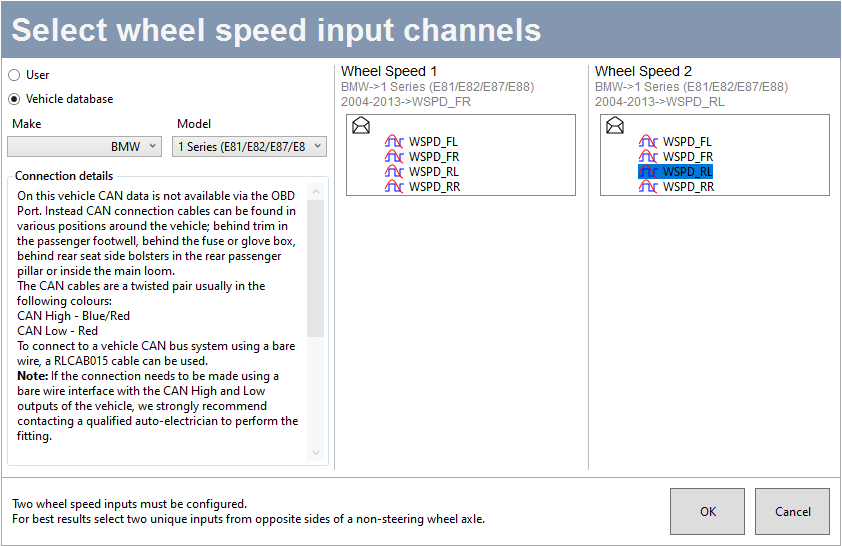
Select the User radio button to choose wheel speed input channels from a user-configured database file.
Select the Vehicle database button to choose wheel speed input channels from the internal vehicle database.
Make – Use the dropdown menu to see a list of available makes and select the one that applies to your setup.
Model – Use the dropdown menu to see a list of all available models and select the one that applies to your setup.
The Connection details area will provide you with available CAN connection information for the selected vehicle.
The Wheel Speed 1 and 2 sections will display lists of available options for Wheel Speed 1 and 2, based on your selection in the vehicle database or your database file.
After configuring your wheel speed inputs, you must measure and enter the offset from the antenna to the wheel reference point. The Wheel speed reference point is the centre point between the rear wheels. Make sure that your measurements are in line with this point.

When you are using VBOX Test Suite, all your configured channels will be available by default. If you want to use a third-party application instead of VBOX Test Suite, the Send over serial setting lets you select the channels you want to view in the third-party application.

Set the output rate for the Serial port. The output rates for USB and Bluetooth are fixed at 100 Hz.
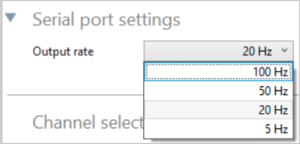
Set the output rate for the Serial port. The output rates for USB and Bluetooth are fixed at 100 Hz.

Click on a Channel Section heading to see the available channels under it and tick the box next to the channel you wish to see in your application.
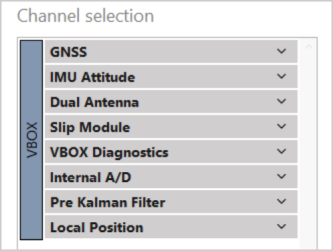
Click on a Channel Section heading to see the available channels under it and tick the box next to the channel you wish to see in your application.