
Select Decel as the Display Mode and tap Settings → Decel.
VBOX Touch will open the Decel Settings screen.
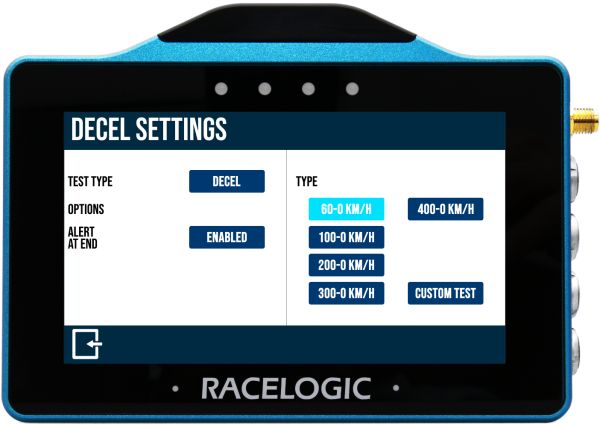
The Decel Settings is where you select the test parameters and manage other test options. You can change settings by tapping on the corresponding button next to an option.
Return to the Decel Mode screen, by tapping on the Exit button in the bottom left corner.
Decel tests can either be started from a specific speed or by using a VBOX Brake Pedal Trigger. Tap the blue Test Type button to toggle between the two options. Differing settings will be displayed depending on the selected test type.
When the Test Type is set to Decel, you will see preset and custom test options on the right-hand side of the settings screen. The currently selected Decel test is highlighted on the screen and will be remembered for future use, even when you use other display modes.
VBOX Touch is supplied with 5 preset speed decel tests. Tap a test to select it. The 60 – 0 KM/H test is selected by default.
- 60 – 0 (km/h or mph)
- 100 – 0 (km/h or mph)
- 200 – 0 (km/h or mph)
- 300 – 0 (km/h or mph)
- 400 – 0 (km/h or mph)
When a test is selected, the name will be displayed in the top right corner of the Decel Mode screen.
You can create a custom test where you choose your own start and end conditions by tapping the Custom Test button.

Define the start and end speed conditions by tapping the corresponding buttons and using the presented keypad to enter the speed values.
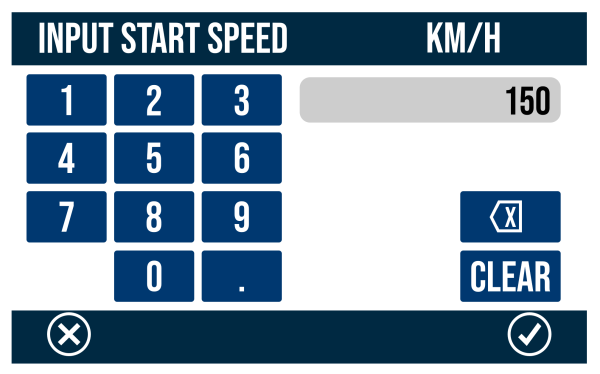
Save the new speed value by tapping the Confirm button in the bottom right corner of the screen, or return to the Decel Settings screen without saving by tapping the Cancel button in the bottom left corner of the screen.
NOTES
- The maximum input value for speed is 999.9 and can be entered up to 1 decimal place.
- The minimum start speed is 5 km/h/ 3.1 mph.
Save the custom test by tapping the Confirm button in the bottom right corner of the screen. Return to the Decel Mode screen without saving it, by tapping the Cancel button in the bottom left corner of the screen.
When selected, the name of the new custom test is displayed in the top right corner of the Decel Mode screen. The last defined Custom Test will be remembered for future use, even when you select a preset test or another display mode.
A Trigger test will start once VBOX Touch detects that the Minimum Trigger Speed is met and a VBOX Brake Pedal Trigger is activated. The test will stop when VBOX Touch detects that the vehicle is stationary (below 2.5 km/h).
When the test type is set to Trigger, The trigger settings become available on the right-hand side of the Decel Settings screen.

The minimum trigger speed is the speed at which trigger activation becomes valid. If the trigger is detected below this speed, the test will not start. Change this speed value by tapping the current value and using the presented keypad to enter a new value.

The minimum trigger speed is the speed at which trigger activation becomes valid. If the trigger is detected below this speed, the test will not start. Change this speed value by tapping the current value and using the presented keypad to enter a new value.

Save the new speed value by tapping the Confirm button in the bottom right corner of the screen, or return to the Decel Settings screen without saving by tapping the Cancel button in the bottom left corner of the screen.
Set the start and end period of the MFDD (Mean Fully Developed Deceleration) analysis period.
This deceleration figure is used to show the maximum deceleration figure a vehicle can achieve. It is usually the deceleration between 80% and 10% of the trigger activation speed, the time at which the vehicle is loaded up and braking at its highest achievable level.
The MFDD is calculated by the following formula (using default 80% – 10% value):
MFDD = ((v_08)² – (v_01)²) / (25.92 * (s_01 – s_08))
Where:
- v_08 is the speed at 80% of the brake trigger activation speed.
- v_01 is the speed at 10% of the brake trigger activation speed.
- s_01 is the distance at which the speed is v_01.
- s_08 is the distance at which the speed is v_08.

Set the start and end period of the MFDD (Mean Fully Developed Deceleration) analysis period.
This deceleration figure is used to show the maximum deceleration figure a vehicle can achieve. It is usually the deceleration between 80% and 10% of the trigger activation speed, the time at which the vehicle is loaded up and braking at its highest achievable level.
The MFDD is calculated by the following formula (using default 80% – 10% value):
MFDD = ((v_08)² – (v_01)²) / (25.92 * (s_01 – s_08))
Where:
- v_08 is the speed at 80% of the brake trigger activation speed.
- v_01 is the speed at 10% of the brake trigger activation speed.
- s_01 is the distance at which the speed is v_01.
- s_08 is the distance at which the speed is v_08.
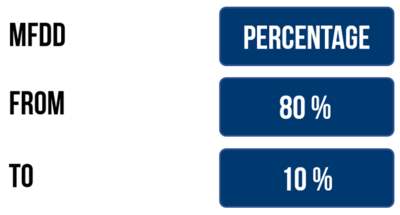
MFDD can be also calculated using Speed. Tap the blue MFDD button to toggle it to Speed.
Change a speed value by tapping the current value and use the presented keypad to enter the new value.
Save the new speed value by tapping the Confirm button in the bottom right corner of the screen, or return to the Decel Settings screen without saving by tapping the Cancel button in the bottom left corner of the screen.

MFDD can be also calculated using Speed. Tap the blue MFDD button to toggle it to Speed.
Change a speed value by tapping the current value and use the presented keypad to enter the new value.
Save the new speed value by tapping the Confirm button in the bottom right corner of the screen, or return to the Decel Settings screen without saving by tapping the Cancel button in the bottom left corner of the screen.
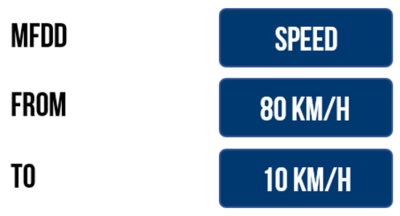
From:
- Speed
- The maximum From speed selectable is the value inputted as Minimum Trigger Speed.
- The minimum From speed you can set is the greater value of 5 km/h or the To value +1.
- In general, the maximum input value for speed is 999.9 and can be entered with up to 1 decimal place.
- Percentage
- The maximum From percentage selectable is 100%.
- The minimum From percentage selectable is the To value +1.
To:
- Speed
- The maximum To speed selectable is the From value -1.
- The minimum To speed selectable is 0.
- Percentage
- The maximum To percentage selectable is the From value -1.
- The minimum To percentage selectable is 0.
By default, an audible and visual alert signals when the test end criteria is met. The VBOX Touch will beep and the 4 LEDs across the top of the device will flash green for 0.5 s. Tap the button to disable.

By default, an audible and visual alert signals when the test end criteria is met. The VBOX Touch will beep and the 4 LEDs across the top of the device will flash green for 0.5 s. Tap the button to disable.
