
The SatGen 4 software can generate a live signal stream to a LabSat 4 Realtime unit, converting the RF data from digital to analogue with less than 1 second’s latency.
Once you have specified your route, you can proceed to connect to the network and create the simulation.
You can either connect directly to the PC or via a network. When using a network, you can either use the internal Ethernet (LAN1) or a UGreen USB to Ethernet Adapter (LAN2).
Connect:
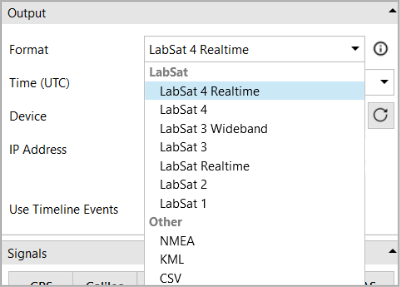
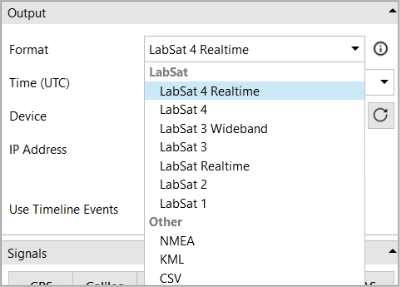
- Select LabSat 4 Realtime as your Format.
The SatGen 4 software can generate a live signal stream to a LabSat 4 Realtime unit, converting the RF data from digital to analogue with less than 1 second’s latency.
Once you have specified your route, you can proceed to connect to the network and create the simulation.
You can either connect directly to the PC or via a network. When using a network, you can either use the internal Ethernet (LAN1) or a UGreen USB to Ethernet Adapter (LAN2).
Connect:
- Select LabSat 4 Realtime as your Format.
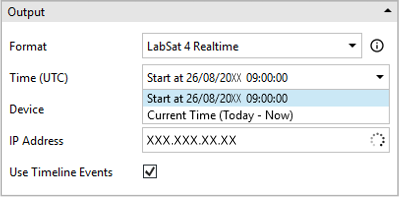
- Select the Mode you wish to use:
- Current Time (Today - Now)
When selecting this, the simulation will start at the next whole minute.
Click the Sync button next to the Time (UTC) field to synchronise the clock to real-world time before you start a simulation.
- Start at [Date] [Time]
The start time of the route.
When selecting this, the simulation will start instantly.
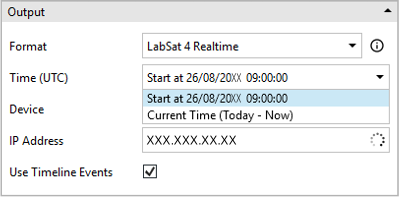
- Select the Mode you wish to use:
- Current Time (Today - Now)
When selecting this, the simulation will start at the next whole minute.
Click the Sync button next to the Time (UTC) field to synchronise the clock to real-world time before you start a simulation.
- Start at [Date] [Time]
The start time of the route.
When selecting this, the simulation will start instantly.
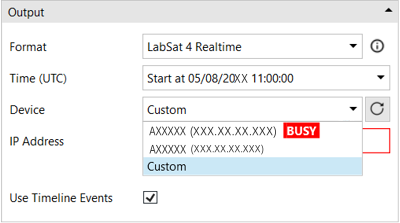
- Click on the Device dropdown to see a list of all LabSat 4 units on the network (Units must be Enabled for Ethernet Streaming to be discoverable).
- Select the required LabSat 4 unit from the list of serial numbers.
Notes:
- If you cannot see the required serial number in the list, select Custom from the Device dropdown list and enter the IP address of the LabSat 4 unit into the IP Address field.
SatGen 4 will search for the unit and select it when it discovers it.
- You cannot select a unit marked with the Busy label, as this unit is already performing a simulation.
You can read more about using multiple LabSat Realtime units with the same computer system here.
- If you cannot see the required serial number in the list, select Custom from the Device dropdown list and enter the IP address of the LabSat 4 unit into the IP Address field.
- Tick the Use Timeline Events box to include the timeline events in the simulation.
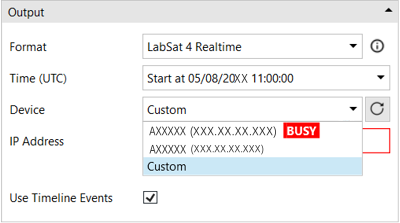
- Click on the Device dropdown to see a list of all LabSat 4 units on the network (Units must be Enabled for Ethernet Streaming to be discoverable).
- Select the required LabSat 4 unit from the list of serial numbers.
Notes:
- If you cannot see the required serial number in the list, select Custom from the Device dropdown list and enter the IP address of the LabSat 4 unit into the IP Address field.
SatGen 4 will search for the unit and select it when it discovers it.
- You cannot select a unit marked with the Busy label, as this unit is already performing a simulation.
You can read more about using multiple LabSat Realtime units with the same computer system here.
- If you cannot see the required serial number in the list, select Custom from the Device dropdown list and enter the IP address of the LabSat 4 unit into the IP Address field.
- Tick the Use Timeline Events box to include the timeline events in the simulation.
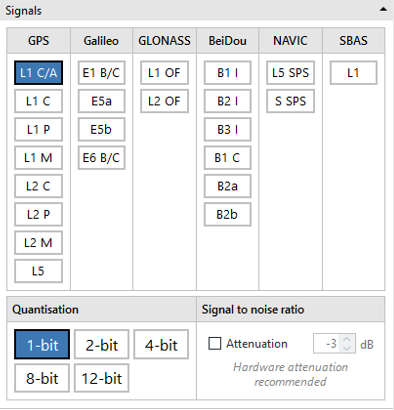
- Select the required GNSS signals for the simulation from the list of available signals.
- Select the required quantisation level and whether you want to apply attenuation.
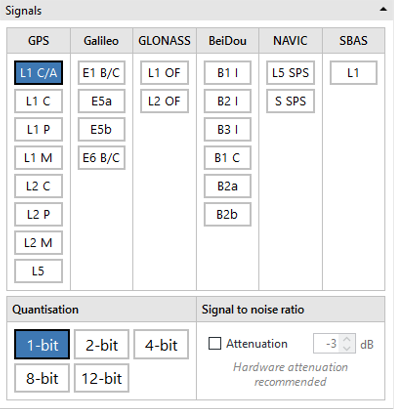
- Select the required GNSS signals for the simulation from the list of available signals.
- Select the required quantisation level and whether you want to apply attenuation.
- Click the Simulate button to confirm the output format. This will open the Live Output tab next to the Create tab.

- Click the Simulate button to confirm the output format. This will open the Live Output tab next to the Create tab.

- Select the live output mode you wish to use and check relevant settings for the selected mode.
- You can use the attenuation sliders to add attenuation to the individual satellites in your simulation.
- You can stop the simulation by clicking the Stop button in the top right-hand corner of the Live Output tab.
The SatGen software can generate a live signal stream to a LabSat Realtime unit that can convert the RF data from digital to analogue with less than 1 second’s latency.
Real Time is an output format in SatGen 4. There are two variations of this feature:
- Current Time: You can create a live signal output for the current time.
- User Time: You can create a live signal output for a specified time and date.
Once you have specified your desired route, you can proceed to create the scenario:
- Make sure that your LabSat Realtime unit is connected to your computer.
- Select LabSat Realtime as your Format.
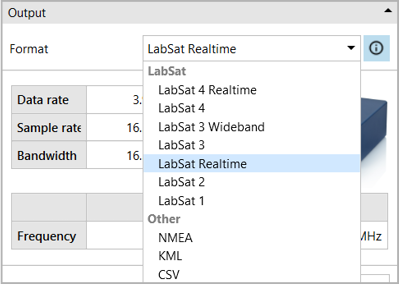
The SatGen software can generate a live signal stream to a LabSat Realtime unit that can convert the RF data from digital to analogue with less than 1 second’s latency.
Real Time is an output format in SatGen 4. There are two variations of this feature:
- Current Time: You can create a live signal output for the current time.
- User Time: You can create a live signal output for a specified time and date.
Once you have specified your desired route, you can proceed to create the scenario:
- Make sure that your LabSat Realtime unit is connected to your computer.
- Select LabSat Realtime as your Format.
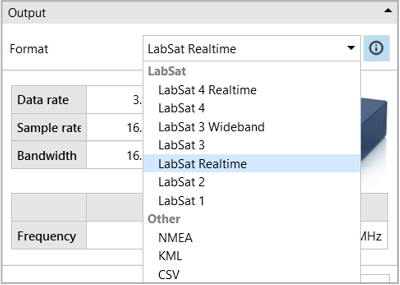
- Select the Mode you wish to use: Real Time (Current Time) or Real Time (User Time).
Note:
- Real Time - Current Time will always start the simulation at the next whole minute. Click the Sync button next to the Mode field to synchronise to real-world time before you start a simulation.
- Real Time - User Time will start the simulation instantly.
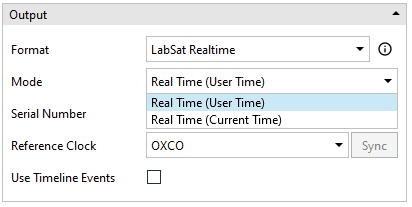
- Select the Mode you wish to use: Real Time (Current Time) or Real Time (User Time).
Note:
- Real Time - Current Time will always start the simulation at the next whole minute. Click the Sync button next to the Mode field to synchronise to real-world time before you start a simulation.
- Real Time - User Time will start the simulation instantly.
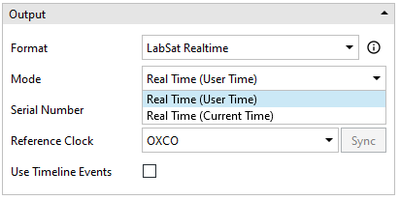
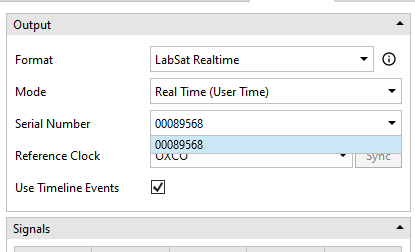
- The Serial Number box will auto-fill with the serial number of your connected unit.
If you have more than one LabSat Realtime unit connected to your computer, you must make sure that you have the correct serial number selected for your simulation.
You can read more about using multiple LabSat Realtime units with the same computer system here.
- The Serial Number box will auto-fill with the serial number of your connected unit.
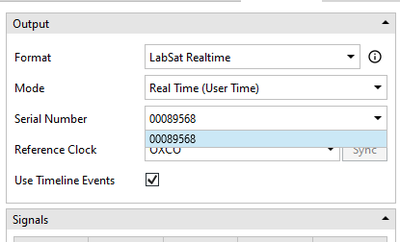
If you have more than one LabSat Realtime unit connected to your computer, you must make sure that you have the correct serial number selected for your simulation.
You can read more about using multiple LabSat Realtime units with the same computer system here.
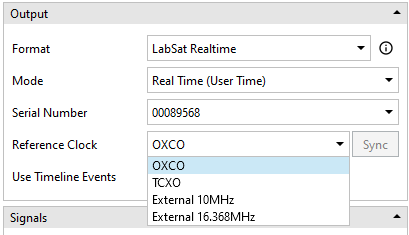
- Select the Reference Clock you wish to use from the following options:
- OXCO
- TCXO
- External 10MHz
- External 16.368MHz
- Select the Reference Clock you wish to use from the following options:
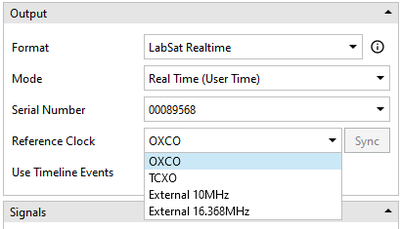
- OXCO
- TCXO
- External 10MHz
- External 16.368MHz
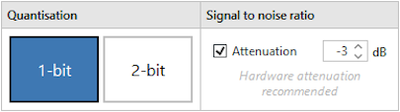
- You can also choose 1- or 2-bit quantisation and whether you want to attenuate the signal-to-noise ratio.
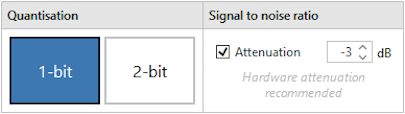
- You can also choose 1- or 2-bit quantisation and whether you want to attenuate the signal-to-noise ratio.
- Click the Simulate button to confirm the output format. This will open the Live Output tab next to the Create tab.
- Click the Simulate button to confirm the output format. This will open the Live Output tab next to the Create tab.
- Select the live output mode you wish to use and check relevant settings for the set mode.
- You can use the attenuation sliders to add attenuation to the individual satellites in your simulation.
- You can stop the simulation by clicking the Stop button in the top right-hand corner.
You will also see a new status indication area at the top of the Live Output Tab.
Transmitting
The Transmitting indicator will display yellow when the simulation first starts and the time is being synchronised. It will display green when live signals are being transmitted.
Overloads
The Overloads indicator makes it easy to see how many times the software has encountered an overload during the simulation.
Buffer Level
The Buffer Level indicator
If too many satellites are present, the indicator will briefly display red to symbolise an overload and reduce the number of satellites until it is able to transmit successfully again.
To make it quick and easy for you to gauge the buffer usage, it will use colours to identify the following ranges of usage:
- Green - 50% to 100%
- Amber - 33% to 49%
- Red - 0% to 32%
CPU Usage
The CPU usage indicator will display the current CPU usage throughout the simulation.
To make it quick and easy for you to gauge the CPU usage, it will use colours to identify the following ranges of usage:
- Green - 0% to 64%
- Amber - 65% to 79%
- Red - 80% to 100%
Stop Output
Click on the Stop Output button to stop the simulation stream.
Auto
This mode will use the total number of satellites as restricted to the value in the Total Satellites setting.
If a buffer under-run occurs (indicating that the computing power required to simulate that many satellites exceeds the capabilities of the computer), SatGen 4 will reduce the total number of satellites by 1.
This makes it safer to run a real-time simulation on a slower machine, as the number of satellites will keep dropping one by one until there are no more buffer under-runs and the simulation is stable.
That final number of satellites is then remembered between sessions to avoid buffer under-runs the next time you run a real-time simulation.
Reset
Click the Reset button to set the number of Total Satellites to the default value of 999.
If a buffer under-run occurs, (indicating that the computing power required to simulate that many satellites exceeds the capabilities of the computer), SatGen 4 will attempt to simulate the specified number of satellites even if the machine is not capable of sustaining it.
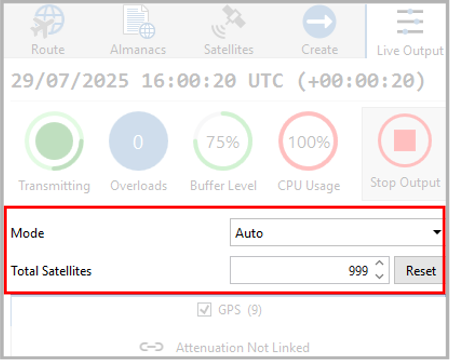
Auto
This mode will use the total number of satellites as restricted to the value in the Total Satellites setting.
If a buffer under-run occurs (indicating that the computing power required to simulate that many satellites exceeds the capabilities of the computer), SatGen 4 will reduce the total number of satellites by 1.
This makes it safer to run a real-time simulation on a slower machine, as the number of satellites will keep dropping one by one until there are no more buffer under-runs and the simulation is stable.
That final number of satellites is then remembered between sessions to avoid buffer under-runs the next time you run a real-time simulation.
Reset
Click the Reset button to set the number of Total Satellites to the default value of 999.
If a buffer under-run occurs, (indicating that the computing power required to simulate that many satellites exceeds the capabilities of the computer), SatGen 4 will attempt to simulate the specified number of satellites even if the machine is not capable of sustaining it.
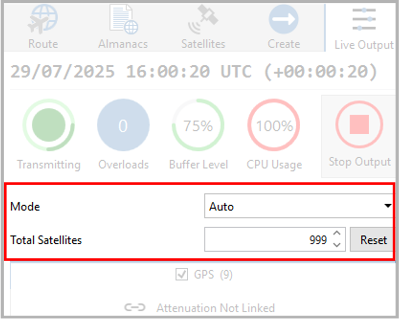
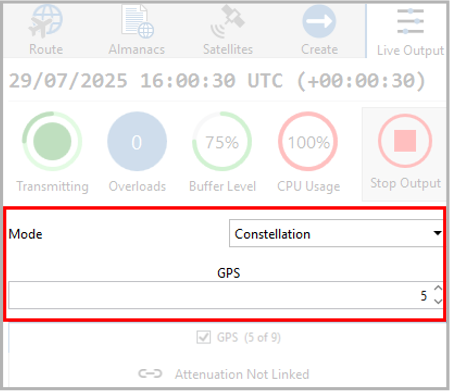
Constellation
The number of satellites is limited separately for each constellation. You can, for example, select 8 GPS satellites and 5 Galileo satellites.
Constellation Satellite number
You can select the number of satellites you wish to simulate from each available constellation. The available constellations will depend on your system.
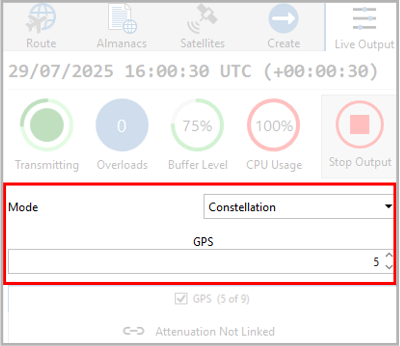
Constellation
The number of satellites is limited separately for each constellation. You can, for example, select 8 GPS satellites and 5 Galileo satellites.
Constellation Satellite number
You can select the number of satellites you wish to simulate from each available constellation. The available constellations will depend on your system.
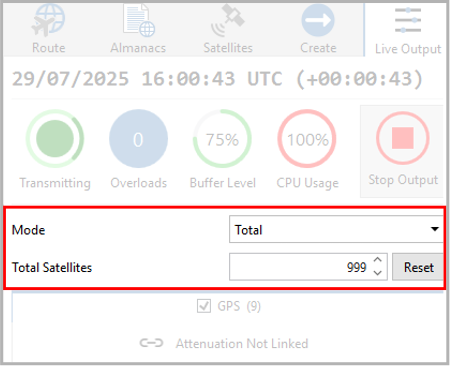
Total
This mode will use the total number of satellites as restricted to the value in the Total Satellites setting.
Total Satellites
This setting defines the maximum number of satellites SatGen can use in the simulation.
Use the up and down arrows to adjust the number of satellites.
Reset
Click the Reset button to set the number of Total Satellites to the default value of 999.
If a buffer under-run occurs, (indicating that the computing power required to simulate that many satellites exceeds the capabilities of the computer), SatGen 4 will attempt to simulate the specified number of satellites even if the machine is not capable of sustaining it.
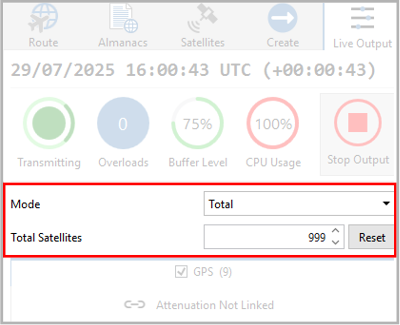
Total
This mode will use the total number of satellites as restricted to the value in the Total Satellites setting.
Total Satellites
This setting defines the maximum number of satellites SatGen can use in the simulation.
Use the up and down arrows to adjust the number of satellites.
Reset
Click the Reset button to set the number of Total Satellites to the default value of 999.
If a buffer under-run occurs, (indicating that the computing power required to simulate that many satellites exceeds the capabilities of the computer), SatGen 4 will attempt to simulate the specified number of satellites even if the machine is not capable of sustaining it.
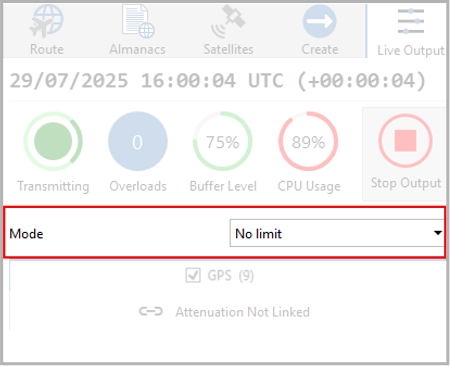
No Limit
The number of satellites is not limited in any way. All satellites in view will be simulated whether the PC can process the simulation or not.
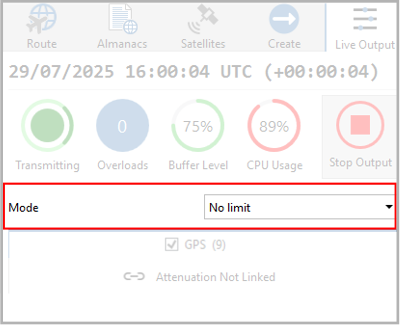
No Limit
The number of satellites is not limited in any way. All satellites in view will be simulated whether the PC can process the simulation or not.
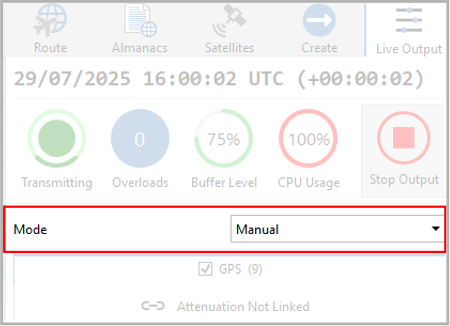
Manual
You can select the satellites you wish to simulate manually from the list of visible satellites.
Unlike in the Constellation, Auto and Total modes, where you select the number of satellites but not which satellites in each available constellation, you have full control over which satellites are simulated in Manual mode.
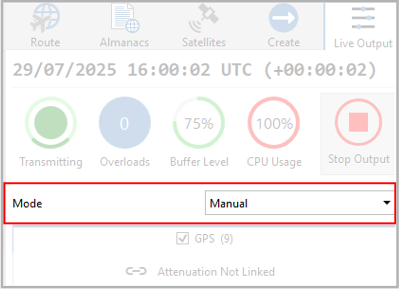
Manual
You can select the satellites you wish to simulate manually from the list of visible satellites.
Unlike in the Constellation, Auto and Total modes, where you select the number of satellites but not which satellites in each available constellation, you have full control over which satellites are simulated in Manual mode.
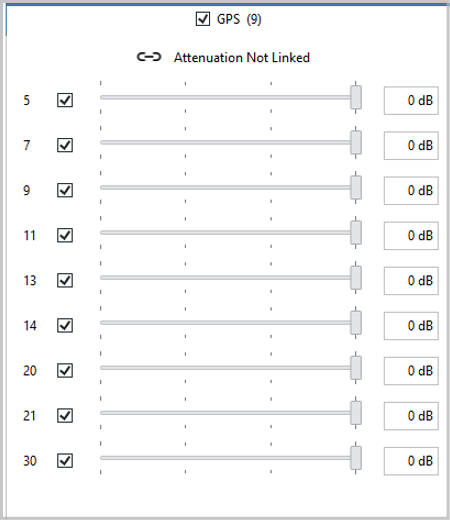
Attenuation Sliders
You can use the attenuation sliders to add attenuation to the individual satellites. Alternatively, you can link the attenuation sliders to apply the same level of attenuation to the entire constellation.
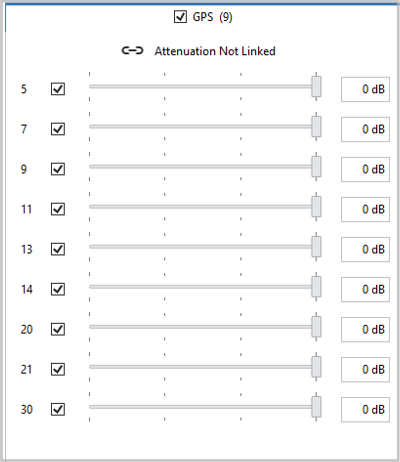
Attenuation Sliders
You can use the attenuation sliders to add attenuation to the individual satellites. Alternatively, you can link the attenuation sliders to apply the same level of attenuation to the entire constellation.
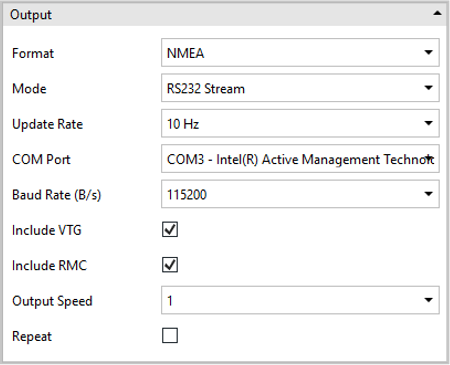
Once you are satisfied with your route, go to the Create options to specify the output options for your scenario.
- Set the Format to NMEA.
- Set the Mode to RS232 Stream.
- Select the required Update Rate.
- Select the relevant COM port that you want to output the NMEA stream through.
- Select the required Baud Rate.
- Tick the VTG and/or RMC boxes to add these messages to the output stream if required.
- Select the required Output Speed.
- Tick the Repeat box if you want SatGen 4 to loop the simulation.
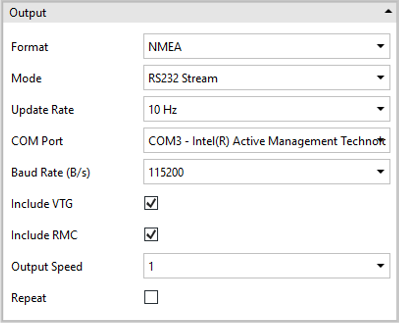
Once you are satisfied with your route, go to the Create options to specify the output options for your scenario.
- Set the Format to NMEA.
- Set the Mode to RS232 Stream.
- Select the required Update Rate.
- Select the relevant COM port that you want to output the NMEA stream through.
- Select the required Baud Rate.
- Tick the VTG and/or RMC boxes to add these messages to the output stream if required.
- Select the required Output Speed.
- Tick the Repeat box if you want SatGen 4 to loop the simulation.


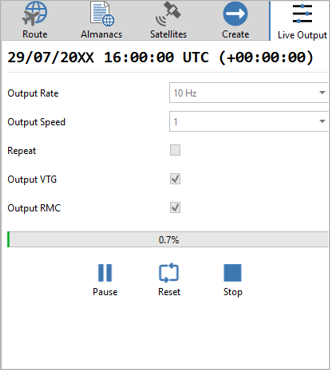
The Live Output tab will display the start date and start time in the simulation, along with the counter for the actual simulation. It will also display the selected Output Rate, Output Speed, if it is repeating or not, and if it includes VTG or RMC messages.
Pause/Resume
Click Pause to pause the simulation. The button will change to Resume.
Click Resume to continue playing the simulation.


Pause/Resume
Click Pause to pause the simulation. The button will change to Resume.
Click Resume to continue playing the simulation.


Reset
Click the Reset button to play the simulation from the start again.

Reset
Click the Reset button to play the simulation from the start again.

Stop Button
Click the Stop button to stop the simulation.

Stop Button
Click the Stop button to stop the simulation.
