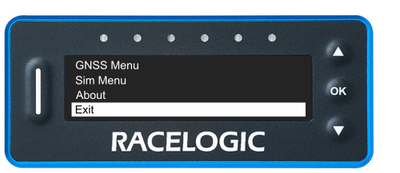
You can access the Settings Menu on the LapTimers by pressing the OK button with the Menu screen on the display. You can navigate the menu with the ▲▼ buttons.
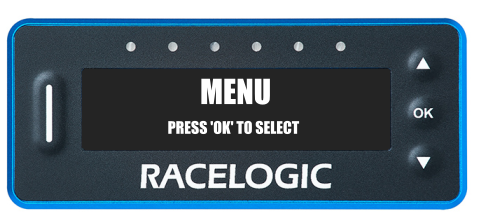
You can access the Settings Menu on the LapTimers by pressing the OK button with the Menu screen on the display. You can navigate the menu with the ▲▼ buttons.
VBOX LapTimer is pre-loaded with a track database that contains the start/finish coordinates for more than 800 tracks worldwide. You can find a list of the included tracks in the circuit database section of our website.
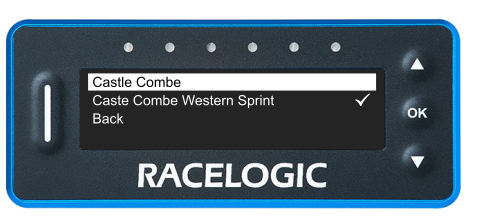
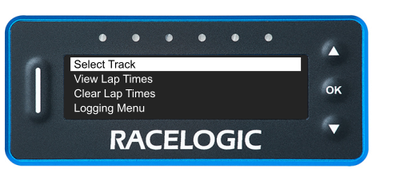
This setting lets you select the track you wish to use for the lap timing.
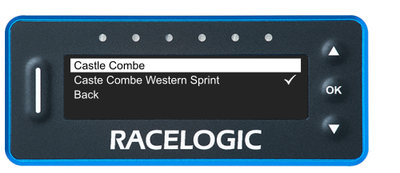
Press the OK button with this setting highlighted to open the list of available relevant tracks.
There will be a tick mark to the right of the selected track.
Use the Up and Down buttons to move through the list and press the OK button to select the highlighted option.
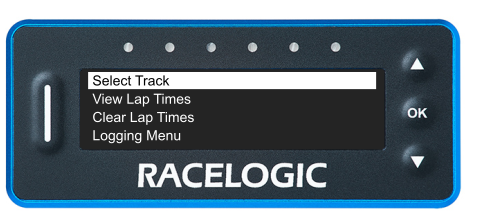
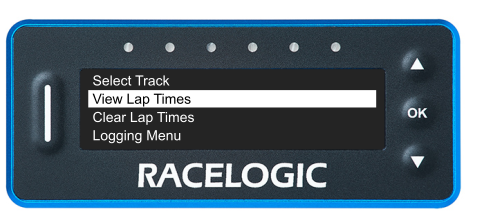
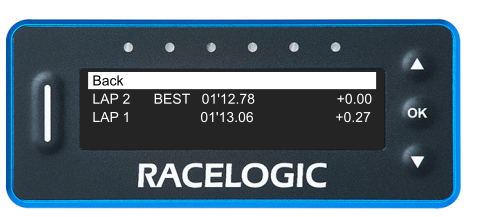
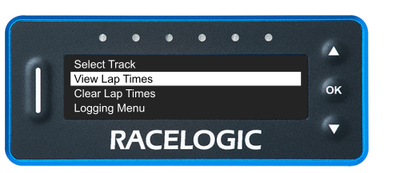
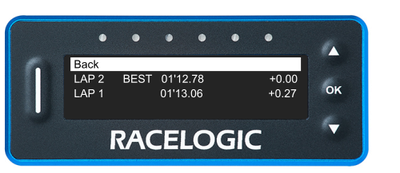
The VBOX LapTimer will store all the lap times from your current session (maximum of 99 lap times). This option will provide you with a list of the logged lap times.
Selecting this option will wipe all stored lap times from the unit’s memory. It will automatically take you back to the main menu after clearing the history.
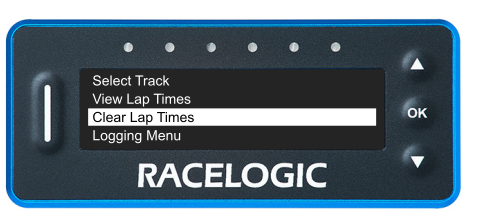
Selecting this option will wipe all stored lap times from the unit’s memory. It will automatically take you back to the main menu after clearing the history.
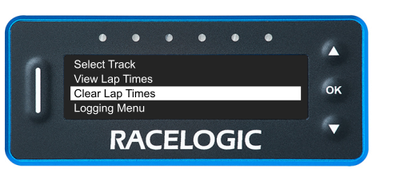
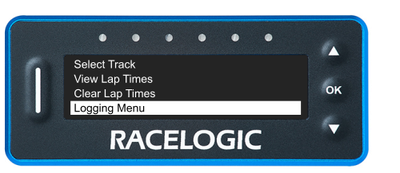
The Logging Menu contains settings for the logging mode, minimum speed and stop logging delay.
Click here to read more about the settings in this menu.
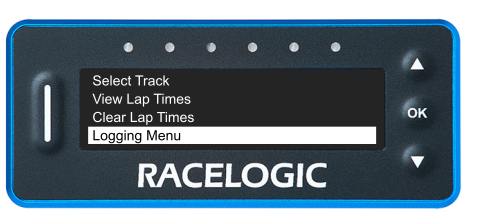
The Logging Menu contains settings for the logging mode, minimum speed and stop logging delay.
Click here to read more about the settings in this menu.
The Predictive Lap Timing Menu contains settings for the Predictive Lap Timing feature, such as Delta-T Bar range, Delta-V light range and the Delta-T speed menu.
Click here to read more about the settings in this menu.
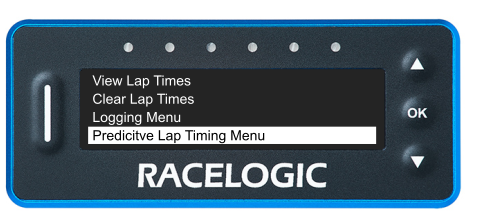
The Predictive Lap Timing Menu contains settings for the Predictive Lap Timing feature, such as Delta-T Bar range, Delta-V light range and the Delta-T speed menu.
Click here to read more about the settings in this menu.
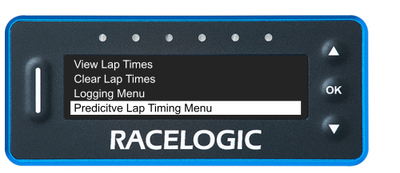
The Lap Timing Menu contains settings for the Lap Timing feature, such as setting and removing splits, saving and loading gates, resetting lap timing data, updating the Tracks Database, split times options, rolling lap time and the gate width.
Click here to read more about the settings in this menu.
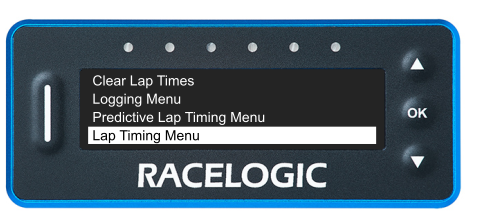
The Lap Timing Menu contains settings for the Lap Timing feature, such as setting and removing splits, saving and loading gates, resetting lap timing data, updating the Tracks Database, split times options, rolling lap time and the gate width.
Click here to read more about the settings in this menu.
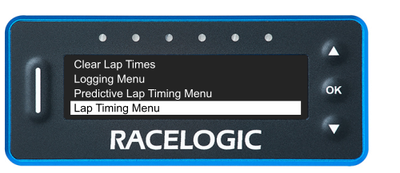
The Display Menu contains settings for the display behaviours, such as speed units, decimal places and smoothing, speed alerts, accel decimal places and smoothing, screen brightness, LED brightness, display orientation, colour and font options.
Click here to read more about the settings in this menu.
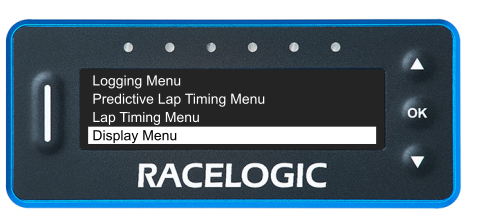
The Display Menu contains settings for the display behaviours, such as speed units, decimal places and smoothing, speed alerts, accel decimal places and smoothing, screen brightness, LED brightness, display orientation, colour and font options.
Click here to read more about the settings in this menu.
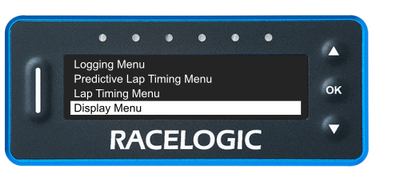
The GNSS Menu contains settings for the GNSS engine, such as the coldstart functionality and the leap seconds.
Click here to read more about the settings in this menu.
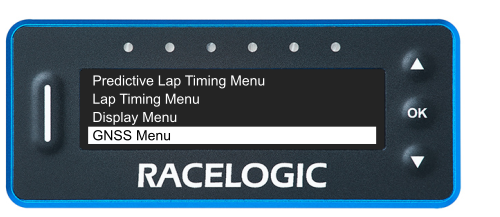
The GNSS Menu contains settings for the GNSS engine, such as the coldstart functionality and the leap seconds.
Click here to read more about the settings in this menu.
The SIM Menu contains settings for using the VBOX LapTimer with the VBOX Sim software.
Click here to read more about the settings in this menu.
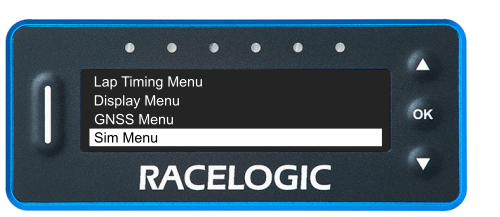
The SIM Menu contains settings for using the VBOX LapTimer with the VBOX Sim software.
Click here to read more about the settings in this menu.
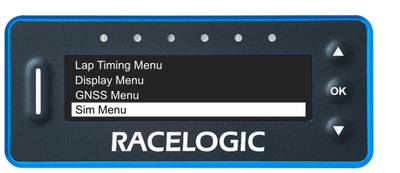
The About section covers information about the unit, such as the hardware version and serial number, the unit type, the Tracks Database, the GNSS engine type, the GNSS engine version and the GNSS satellite count.
Click here to read more about the settings in this menu.
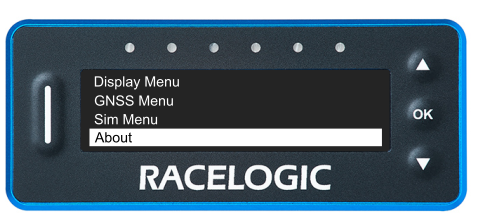
The About section covers information about the unit, such as the hardware version and serial number, the unit type, the Tracks Database, the GNSS engine type, the GNSS engine version and the GNSS satellite count.
Click here to read more about the settings in this menu.
Press the OK button with this option highlighted to navigate back to the Display Modes.
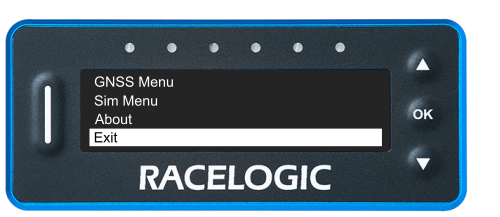
Press the OK button with this option highlighted to navigate back to the Display Modes.